Waiter Dashboard
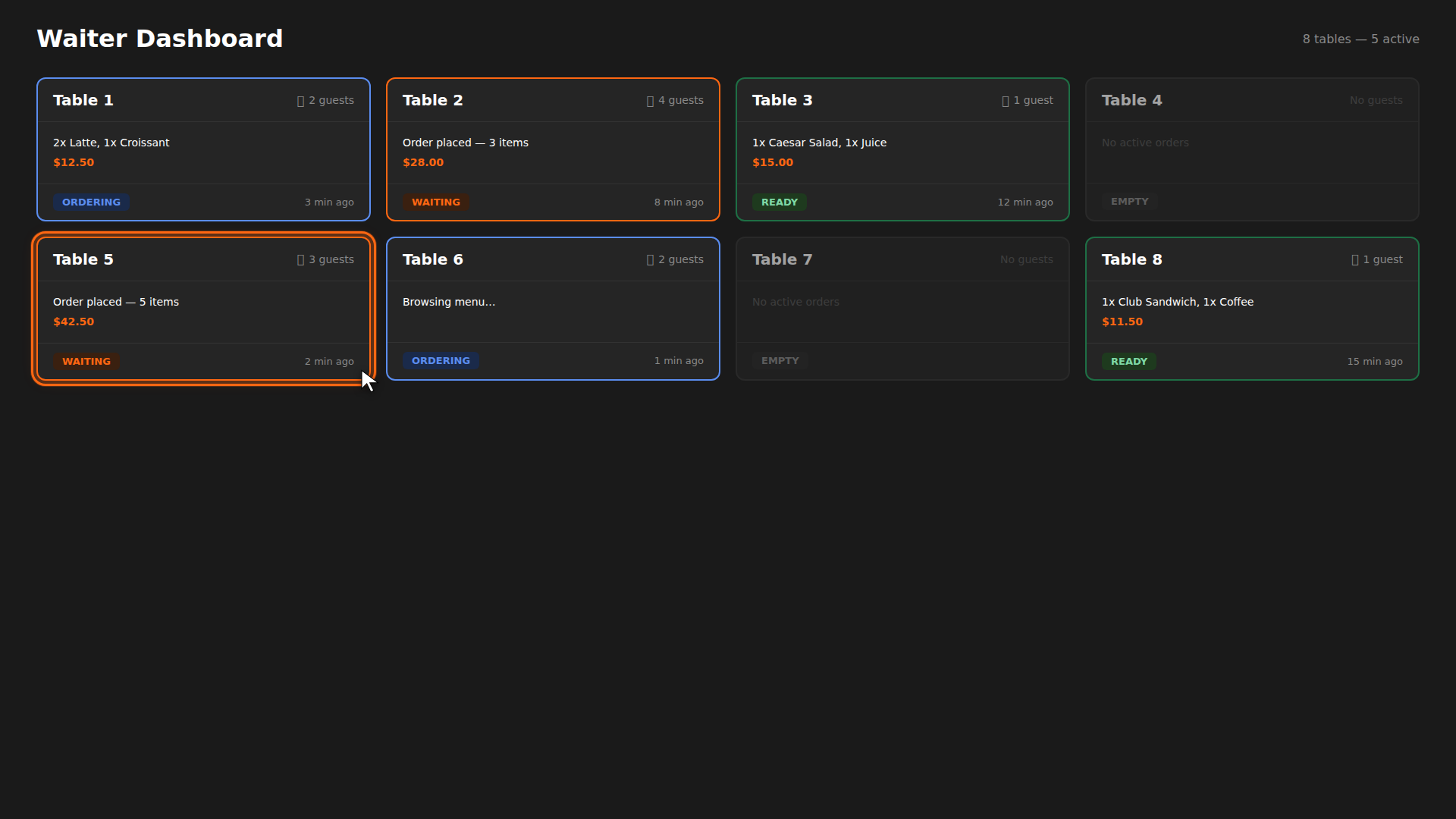
The waiter dashboard gives you a bird's-eye view of every table in your venue. Each table appears as a card showing who is seated, what they ordered, and what needs your attention. Here is how to use it day-to-day.
Build it for real
Ready to build it?
Opens the right CRM screen with this help page attached.
Tips
- Tables update in real-time — new orders and status changes appear automatically, no page refresh needed.
- Ready tables need you first — green cards mean the food is done and the customer is waiting for delivery.
- Chat saves trips — answer quick questions via chat instead of walking back and forth.
- Give Points is powerful — use it to turn a negative experience into a loyal customer.