Battle Pass
A Battle Pass is a tiered progression system that keeps customers coming back over an extended period. Customers earn XP from their purchases and unlock rewards as they reach each tier -- think of it as a loyalty ladder where the more a customer orders, the higher they climb and the better the rewards become.
This page is the complete reference for every Battle Pass setting, rule, and edge case. If you are creating your first Battle Pass, start with the Create Your First Battle Pass guide and come back here when you need details.
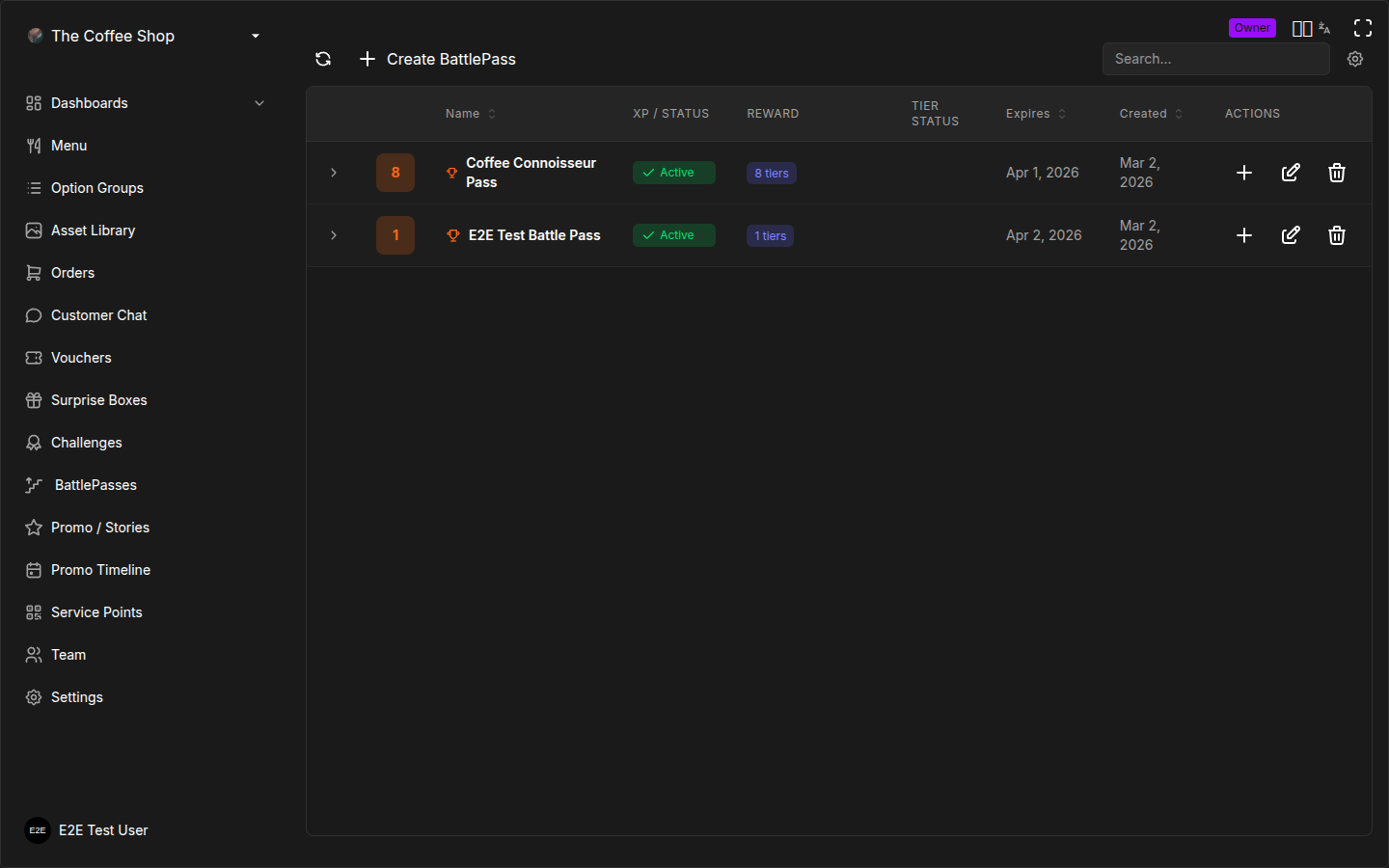
What is a Battle Pass?
A Battle Pass is a seasonal or campaign-based reward track. You define a set of tiers, each with an XP threshold and a reward. As customers order from your restaurant, they accumulate XP. When their XP crosses a tier's threshold, they automatically receive that tier's reward.
The Battle Pass is your most powerful tool for long-term engagement. While challenges drive short-term goals (visit 5 times) and vouchers are one-off rewards, a Battle Pass creates a multi-week journey with escalating rewards. A customer at Tier 3 of 5 has a strong incentive to keep ordering because they can see Tiers 4 and 5 waiting.
Each Battle Pass contains one or more tiers, and each tier has:
- An XP threshold the customer must reach
- A reward that is automatically granted when the threshold is met
You can run multiple Battle Passes at the same time (e.g., a weekly lunch pass and a monthly premium pass), or keep it simple with a single active season.
Battle Pass Fields Reference
This section documents every field you encounter when creating or editing a Battle Pass.
Name
| What it is | The title customers see on the Battle Pass screen in the app |
| Valid values | Any text (required) |
| Default | None |
The Battle Pass name sets the theme for the entire season. It is prominently displayed at the top of the Battle Pass screen in the mobile app.
Tips for naming:
- Use seasonal or thematic names: "Summer Season 2025", "Coffee Champion", "Holiday Feast". This signals freshness and makes each season feel unique.
- Keep it short: 2-4 words. The name appears as a header and should be immediately recognizable.
- Update names each season: Reusing the same name signals staleness. Even small changes ("Winter Warm-Up 2025" vs "Winter Warm-Up 2026") help.
- Match the name to the duration: "Sprint" for a 1-week pass, "Season" for a 1-3 month pass, "Journey" for an ongoing pass.
Description
| What it is | A short explanation visible to customers below the name |
| Valid values | Any text (optional) |
| Default | Empty |
Use the description to set expectations: how many tiers there are, what the top reward is, or how long the season lasts. For example: "5 tiers of rewards. Reach the top for a free chef's special."
Schedule Settings
Start Date
| What it is | When the Battle Pass becomes active |
| Valid values | Any date, or empty to start immediately |
| Default | Empty (starts immediately) |
End Date
| What it is | When the Battle Pass expires |
| Valid values | Any date, or empty for no expiry |
| Default | Empty (no expiry) |
What happens when a Battle Pass expires:
- Customers can no longer earn XP toward it.
- Any unlocked rewards have already been granted.
- Tiers the customer did not reach are lost -- there is no grace period.
- The Battle Pass remains in the CRM table for reference but is marked as expired.
- Customer progress is preserved in the system but no longer visible in the app.
Set a clear end date for seasonal passes to create urgency. Customers who see a countdown timer in the app are more motivated to keep ordering. A Battle Pass without an end date lacks the psychological pressure that drives engagement.
Recurrence
| What it is | How the Battle Pass availability repeats |
| Valid values | One-time, Weekly, Monthly, Yearly |
| Default | One-time |
| Recurrence | Behavior | Best for |
|---|---|---|
| One-time | Runs once between start and end dates | Seasonal campaigns, limited events |
| Weekly | Repeats on selected days each week | Weekly lunch specials, weekday-only programs |
| Monthly | Repeats on the same day each month | Monthly loyalty tracks |
| Yearly | Repeats on the same date each year | Anniversary or holiday programs |
When you select Weekly, a row of day buttons appears. Click each day the Battle Pass should be active (e.g., Mon, Wed, Fri). You must select at least one day.
Valid Hours
| What it is | The time window during which XP is earned toward the Battle Pass |
| Valid values | A from/to time range, or "All day" |
| Default | All day |
Use the Valid Hours slider to restrict the Battle Pass to specific hours. Drag the slider handles to set a start and end hour (e.g., 11:00 to 15:00 for a lunch-only pass).
Schedule settings affect when customers can earn XP toward the Battle Pass. Orders placed outside the valid window do not count toward progression. The Battle Pass itself remains visible in the app at all times.
Tiers
Tiers are the core of a Battle Pass. Each tier represents a milestone on the progression track.
Tier Fields
Tier Name
| What it is | An optional label for the tier |
| Valid values | Any text, or empty |
| Default | Empty (displays as the XP value) |
Common naming conventions:
- Metal ranks: Bronze, Silver, Gold, Platinum, Diamond
- Numbered levels: Level 1, Level 2, Level 3
- Thematic names: Taster, Regular, Connoisseur, Chef's VIP
- No name: If left empty, the tier displays as its XP threshold (e.g., "50 XP")
XP Required
| What it is | The XP threshold the customer must reach to unlock this tier |
| Valid values | Any positive integer (required) |
| Default | None |
XP is earned through orders. The amount of XP earned per order corresponds to the points earned through the points system. If a customer earns 10 points from an order, they also earn 10 XP toward the Battle Pass.
Key rules:
- Each tier's XP threshold must be unique within the Battle Pass.
- Tiers are automatically sorted by XP from lowest to highest.
- XP is cumulative -- a customer at 300 XP has unlocked all tiers with thresholds of 300 or less.
Tier Reward Type
| What it is | The kind of reward granted when the tier is unlocked |
| Valid values | Points, Voucher, Surprise Box |
| Default | None (required) |
Each tier grants exactly one reward. Choose the type that fits the tier's position in your progression:
| Reward Type | How to configure | Best for |
|---|---|---|
| Points | Enter the number of points in the Points field | Early tiers -- quick, easy rewards that feel immediate |
| Voucher | Select a voucher template from the Voucher dropdown | Mid-tier -- tangible rewards that drive specific menu items |
| Surprise Box | Select a surprise box from the Surprise Box dropdown | Top-tier -- exciting mystery rewards that feel premium |
Make sure the voucher templates or Surprise Boxes you select are active. If a reward item is deactivated or deleted later, customers who reach that tier may not receive the expected reward.
Tier Active Toggle
| What it is | Controls whether this tier can be unlocked |
| Valid values | Active or Inactive |
| Default | Active |
When a tier is inactive:
- It still appears in the CRM table (marked as Inactive).
- Customers cannot unlock it even if they reach the XP threshold.
- Reactivating it later makes it available again.
- Customers who passed the threshold while it was inactive do not retroactively receive the reward.
This is useful if you want to temporarily remove a reward without deleting the tier configuration.
How Progression Works
Earning XP
XP is earned through regular purchases. The XP earned per order is tied to the points system:
- If a customer earns 10 points from an order, they also earn 10 XP toward all active Battle Passes.
- XP is awarded when the order is completed (status CLOSED).
- Orders placed outside the Battle Pass's valid hours or valid days do not award XP.
XP and points are separate counters that happen to share the same earning rate. Spending points (buying a voucher) does not reduce XP. XP only goes up.
Unlocking Tiers
When a customer's accumulated XP crosses a tier's threshold, the reward is granted automatically:
- Points rewards are added directly to the customer's balance.
- Voucher rewards appear in the customer's wallet.
- Surprise Box rewards appear ready to be opened.
If a customer earns enough XP to cross multiple tiers at once (e.g., a large order pushes them from 40 XP past the 50 XP and 100 XP tiers), all applicable rewards are granted.
What Customers See
In the mobile app, customers see the Battle Pass as a horizontal scrollable track with visual milestones:
- Tier cards are arranged left to right, sorted by XP threshold.
- A progress bar shows how far the customer has advanced.
- Each tier card displays the reward preview (voucher image or point amount).
- The app automatically scrolls to the customer's current position.
- Completed tiers are highlighted; upcoming tiers remain muted.
- A countdown timer shows how much time remains before the Battle Pass ends.
Customers can see all tiers from the beginning, including the top-tier reward. This is intentional -- visible aspirational goals increase motivation.
Creating a Battle Pass
- Go to Battle Pass in the CRM sidebar.
- Click Create BattlePass in the top-right corner.
- Fill in the fields described in the fields reference above.
- Add at least one tier (see Adding tiers during creation).
- Click Create battle pass.
Adding Tiers During Creation
The bottom section of the form lists all tiers. Click + Add tier to add a row for each tier.
Each tier row contains:
| Field | Description |
|---|---|
| Name | Optional label (e.g., "Bronze", "Silver", "Gold"). If left empty, the tier displays as its XP value |
| XP (required) | The XP threshold to unlock this tier. Must be a positive number |
| Reward type (required) | Choose Points, Voucher, or Surprise Box |
| Reward value | Depends on the reward type (see Tier Reward Type) |
Click the X button on a new tier row to remove it before saving. You must have at least one tier to create a Battle Pass.
Managing a Battle Pass
The Battle Pass Table
The Battle Pass page in the CRM displays all your Battle Passes in an expandable table. Each parent row is a Battle Pass, and expanding it reveals the tiers inside, sorted by XP from lowest to highest.
| Column | Description |
|---|---|
| Preview | Tier count badge (parent row) or reward thumbnail (tier row) |
| Name | Battle Pass name with trophy icon (parent) or tier name (child) |
| XP / Status | Active/Inactive badge (parent) or XP threshold badge (tier) |
| Reward | Number of tiers (parent) or reward type with preview (tier) |
| Tier Status | Active/Inactive badge for individual tiers |
| Expires | Expiration date, or "No expiry" if open-ended |
| Created | Date the Battle Pass was created |
A Battle Pass shows as Active when the current date falls between its start and end dates (or if no dates are set). Individual tiers also have their own Active toggle.
Editing a Battle Pass
- Click the Edit button on the Battle Pass row.
- Update any field: name, description, dates, recurrence, valid hours, or tiers.
- Click Update battle pass.
When editing, you can modify existing tiers inline and add new tiers at the bottom of the form. Existing tiers show their Active toggle directly in the form.
Managing Tiers After Creation
Once a Battle Pass exists, you can add or edit tiers individually without opening the full Battle Pass form.
Adding a tier:
- Find the Battle Pass in the table.
- Click the + (Add Tier) button on its row.
- Fill in the tier form: Name, XP Required, Reward Type, Active toggle.
- Click Add Tier.
Editing a tier:
- Expand the Battle Pass row to see its tiers.
- Click the Edit button on the tier row.
- Update any field: name, XP, reward type, reward value, or active status.
- Click Update Tier.
Deleting a Battle Pass
- Click the Delete button on the Battle Pass row.
- Confirm the deletion.
Deleting a Battle Pass removes it and all its tiers permanently. This action cannot be undone. Customer progress toward deleted tiers is lost. If you want to end a Battle Pass without losing the configuration, set an end date instead of deleting it.
Tier Design Guide
Getting the tier structure right is the most important part of Battle Pass design. A well-structured pass creates a compelling journey from "easy first win" to "aspirational final goal."
How Many Tiers?
| Tier count | Feel | Best for |
|---|---|---|
| 3-4 | Quick, focused | Short campaigns (1-2 weeks), simple programs |
| 5-6 | Balanced, standard | Monthly seasons, general use (recommended for most merchants) |
| 7-8 | Deep, ambitious | Long seasons (2-3 months), engaged customer bases |
| 9+ | Overwhelming | Generally too many -- customers lose motivation seeing too many steps |
5-6 tiers is the sweet spot for most restaurants. It gives customers enough milestones to feel progress without overwhelming them. If you are unsure, start with 5 tiers.
XP Spacing
The gap between tiers should increase as you go higher. This creates a sense of acceleration at the beginning (quick early wins) and investment at the end (the customer has put in too much effort to stop).
Good XP spacing (escalating gaps):
| Tier | XP | Gap from previous |
|---|---|---|
| 1 | 50 | -- |
| 2 | 150 | 100 |
| 3 | 300 | 150 |
| 4 | 500 | 200 |
| 5 | 800 | 300 |
Bad XP spacing (linear gaps):
| Tier | XP | Gap from previous |
|---|---|---|
| 1 | 200 | -- |
| 2 | 400 | 200 |
| 3 | 600 | 200 |
| 4 | 800 | 200 |
| 5 | 1000 | 200 |
The first example is better because Tier 1 is easy to reach (encouraging sign-up), and each subsequent tier requires progressively more commitment.
Reward Escalation
Rewards should increase in value as tiers get harder:
- Tiers 1-2 (Early): Small point bonuses (20-50 points). These create momentum and make the customer feel like progress is happening.
- Tiers 3-4 (Middle): Vouchers for popular items (free coffee, 10-15% off). These are the tiers where most customers stall -- a good voucher reward pulls them through.
- Tiers 5-6 (Late): Premium rewards -- high-value vouchers (free meal, 25%+ off) or Surprise Boxes. These are aspirational. Not every customer will reach them, but seeing them motivates continued engagement.
Do not put the best reward in Tier 1. If the most exciting reward is easy to get, customers have no reason to continue past it. The best reward should always be the hardest to reach.
The Psychology of Progression
Battle Passes tap into several psychological principles:
- Sunk cost effect: A customer at Tier 3 thinks "I've already put in effort to get here -- I should keep going to make it worthwhile."
- Goal gradient effect: People accelerate toward a goal as they get closer. The visible progress bar and countdown timer amplify this.
- Loss aversion: The end date creates a fear of missing out. Unclaimed tiers feel like wasted progress.
- Escalation of commitment: Each tier reached makes the next one feel more achievable.
Use these principles by:
- Making Tier 1 very easy (reduce the barrier to starting).
- Showing all tiers upfront (give customers something to aspire to).
- Setting a clear end date (create urgency).
- Spacing XP thresholds with increasing gaps (create acceleration at the start).
Frequently Asked Questions
What happens when the season ends?
When a Battle Pass reaches its end date, customers can no longer earn XP toward it. Any tiers they already unlocked remain -- the rewards were already granted. Tiers they did not reach are lost. The Battle Pass remains in the CRM for reference. You can create a new Battle Pass to start a fresh season.
Can I extend a Battle Pass?
Yes. Edit the Battle Pass and change the end date to a later date. Customer progress is preserved and they can continue earning XP. This is useful if you notice most customers are close to a tier but have not quite reached it.
Can customers see other tiers before unlocking?
Yes. Customers see the entire tier track from the beginning, including all rewards. This is intentional -- visible goals motivate progression. Completed tiers are highlighted, the current tier shows progress, and future tiers appear muted but fully visible.
How is XP calculated?
XP earned per order equals the points earned through the points system. If your points rate is 10% and a customer places a $30 order, they earn 3 points and 3 XP. XP and points share the same earning rate but are tracked independently. Spending points does not reduce XP.
Can a customer lose XP?
XP only goes up. It is never deducted, even if the customer spends points. The only exception is if an order that awarded XP is cancelled -- the XP from that specific order is reversed.
What if I run multiple Battle Passes at once?
Each order awards XP toward all active Battle Passes simultaneously. A customer can progress through multiple passes at the same time. This lets you run complementary passes -- for example, a "Weekday Lunch Pass" (Mon-Fri, 11-15) alongside a "Weekend Explorer Pass" (Sat-Sun, all day).
Can I add tiers to a running Battle Pass?
Yes. You can add new tiers at any time. Customers who have already earned enough XP to pass the new tier's threshold will not automatically unlock it -- they need to earn additional XP (any amount) to trigger the tier check. For this reason, it is better to plan all tiers before launching.
What happens to inactive tiers?
Inactive tiers are skipped. Customers who reach the XP threshold of an inactive tier do not receive the reward and are not notified. If you reactivate the tier later, customers who previously passed the threshold do not retroactively receive the reward -- they would need additional XP to trigger a new check.
Can customers complete a Battle Pass early?
Yes. If a customer earns enough XP to unlock all tiers before the end date, they have "completed" the Battle Pass. All rewards are granted. The Battle Pass card in the app shows full completion. The customer can continue ordering but earns no additional rewards from that pass.
Do group orders award XP?
Yes. The group owner (who places the final order) earns points and XP for the entire order. Individual group members do not earn XP from the shared order -- only the person who completes the checkout does.
Troubleshooting
Battle Pass not showing to customers
Symptoms: You created a Battle Pass but customers cannot see it.
Checklist:
- Check start date. If the start date is in the future, the pass will not appear until then.
- Check end date. If the end date has passed, the pass is expired.
- Check if it has tiers. A Battle Pass with zero active tiers may not display.
- Check recurrence and valid days. A weekly Battle Pass set to Mon-Fri will not appear on weekends.
- Ask the customer to refresh. Pull-to-refresh reloads the Battle Pass list.
XP not counting
Symptoms: A customer ordered but their XP did not increase.
Possible causes:
- Order not completed. XP is awarded on order completion (CLOSED status), not on order placement.
- Valid hours restriction. The order was placed outside the Battle Pass's valid hours.
- Valid days restriction. The order was placed on a day not included in the Battle Pass's schedule.
- Points system disabled. XP is tied to the points system. If automatic points are disabled, no XP is earned.
- Order below minimum. If the points system has a minimum order amount and the order is below it, zero points (and zero XP) are earned.
Customer did not receive tier reward
Symptoms: A customer reached a tier's XP threshold but did not get the reward.
Possible causes:
- Tier is inactive. Check the tier's Active toggle in the CRM.
- Reward item is deactivated. If the voucher template or surprise box used as the reward is inactive or deleted, the reward cannot be delivered.
- Timing issue. The reward is granted when the XP threshold is crossed by a completing order. If the order is still in progress, the reward has not been issued yet.
Example Battle Pass Designs
Coffee Shop: "Bean Counter Season"
Duration: 1 month. Tiers: 5.
| Tier | Name | XP | Reward |
|---|---|---|---|
| 1 | Taster | 30 | 15 bonus points |
| 2 | Regular | 80 | Voucher: "Free Cookie" |
| 3 | Enthusiast | 150 | 30 bonus points |
| 4 | Aficionado | 250 | Voucher: "Free Latte" |
| 5 | Champion | 400 | Surprise Box: "Barista's Pick" |
Why it works: The first tier is easy (2-3 visits), the free cookie at Tier 2 is an early tangible win, and the free latte at Tier 4 is the real pull. Tier 5's surprise box adds excitement for the most dedicated customers.
Pizzeria: "Slice Season"
Duration: 2 months. Tiers: 6.
| Tier | Name | XP | Reward |
|---|---|---|---|
| 1 | First Bite | 50 | 20 bonus points |
| 2 | Regular | 120 | Voucher: "Free Garlic Bread" |
| 3 | Fan | 220 | 40 bonus points |
| 4 | Super Fan | 350 | Voucher: "20% Off Your Order" |
| 5 | Legend | 500 | Voucher: "Free Medium Pizza" |
| 6 | Hall of Fame | 700 | Surprise Box: "Pizza Party Box" |
Why it works: Six tiers across two months gives customers one tier roughly every 10 days. The free pizza at Tier 5 is the primary motivator. The "Hall of Fame" tier is aspirational and rewards the top customers.
Bar: "Happy Hour Championship"
Duration: 3 months. Tiers: 5. Valid hours: 16:00-20:00.
| Tier | Name | XP | Reward |
|---|---|---|---|
| 1 | Newcomer | 40 | 25 bonus points |
| 2 | Regular | 100 | Voucher: "Free Appetizer" |
| 3 | VIP | 200 | Voucher: "15% Off" |
| 4 | Elite | 350 | Voucher: "Free Cocktail" |
| 5 | Legend | 500 | Surprise Box: "Bartender's Selection" |
Why it works: Restricted to happy hour times, this pass specifically drives after-work traffic. The 3-month duration allows even casual visitors to progress. The cocktail reward at Tier 4 is highly desirable for the target audience.
Best Practices
Season Duration
| Duration | Style | Works well for |
|---|---|---|
| 1-2 weeks | Short sprint | Quick promotions, event tie-ins |
| 1 month | Standard season | Regular monthly engagement |
| 2-3 months | Extended season | Deep loyalty building, premium programs |
Shorter durations create urgency. Longer durations reward consistency. Match the duration to your customer visit frequency -- if most customers visit weekly, a one-month pass with 4-5 tiers is a good starting point.
Reward Progression
- Early tiers: Small point bonuses. Easy to reach, creates momentum.
- Middle tiers: Vouchers for popular items. Keeps customers engaged.
- Final tiers: Premium rewards like Surprise Boxes or high-value vouchers. The aspirational goal.
Plan Before You Launch
Unlike challenges (which can be tweaked freely), Battle Pass changes can confuse customers who are mid-progression. Plan your tiers, XP thresholds, and rewards before launching. If you need to adjust mid-season, add tiers rather than modifying existing ones.
Communicate the Season
Make sure customers know about your Battle Pass:
- Mention it at the counter or through table cards.
- Train staff to explain the progression system.
- Highlight the top-tier reward to create aspiration.
- Post about it on social media when a new season starts.
Transition Between Seasons
When one season ends and another begins:
- Overlap by a few days so customers see the new pass before the old one disappears.
- Do not reuse the same tier structure every season -- keep it fresh.
- Vary the rewards so returning customers see something new.
- Consider a "season kickoff" challenge alongside the new Battle Pass to create excitement.
Combining with Other Loyalty Features
Battle Passes work best as part of a complete loyalty strategy:
- Points: Customers earn points from orders, which also count as XP toward Battle Pass tiers.
- Vouchers: Use voucher templates as tier rewards. Create special vouchers exclusively for Battle Pass tiers.
- Challenges: Run challenges alongside a Battle Pass. Challenges provide quick wins while the Battle Pass tracks long-term progress.
- Surprise Boxes: Use reward-only boxes (no point price) as premium tier rewards that customers can only earn through the Battle Pass.
Related Pages
- Create Your First Battle Pass -- Step-by-step tutorial
- Points System -- How XP is earned through the points system
- Vouchers -- Creating voucher templates used as tier rewards
- Challenges -- Short-term goals that complement long-term Battle Pass progression
- Surprise Boxes -- Mystery reward boxes used as top-tier Battle Pass rewards
- Choosing the Right Tool -- Compare all loyalty features