Receiving Orders
Learn how orders arrive in OKeep and how to manage them from the CRM.
How Orders Arrive
The typical ordering flow works like this:
- A customer scans the QR code at a service point (table, counter, etc.)
- The customer browses your menu on their phone or in a browser window
- The customer adds items to their cart, selects options and extras, and places the order
- The order instantly appears in the CRM with status Preparing
- Your staff prepares the order and advances it through the statuses
- The customer picks up the order or receives it at their table
- Loyalty points are awarded to the customer when the order is closed
Orders can also arrive through several other channels:
- Group ordering -- multiple customers at the same service point combine their items into a single order
- Customer web -- a customer opens a link in their browser (no app needed) and places an order
- Manual creation -- a staff member creates an order on behalf of a walk-in customer using the CRM
Orders appear in the CRM the moment they are placed -- there is no delay. The system uses a live WebSocket connection, so you do not need to refresh the page.
Where Orders Appear
Orders are visible in two places inside the CRM:
| View | Best for | How to access |
|---|---|---|
| Orders Dashboard | Managers who need a full list of all orders with search, filters, and detailed actions | Orders in the sidebar |
| Kitchen Display (Dashboard) | Kitchen and counter staff who need a card-based, at-a-glance view during service | Dashboards in the sidebar, then select a dashboard |
Both views update in real time. You can use whichever view fits your workflow, or use both at the same time on different screens.
Orders Dashboard
The Orders Dashboard is a card-based management view of all orders across your location. It is designed for managers and supervisors who need to see everything at once, search for specific orders, and make detailed changes to order and payment statuses.
Layout
The dashboard groups orders into sections:
- Active Orders -- orders that are currently being prepared or are ready for pickup
- Completed Orders -- the most recent closed orders (up to 8 shown)
- Cancelled Orders -- recently cancelled orders (up to 4 shown)
Each order is shown as a card displaying:
- Order number (short ID)
- Service point name (the printer / table the order belongs to)
- Status indicator (colored dot -- yellow for preparing, blue for ready, green for closed, red for cancelled)
- Order total and number of items
- Delivery mode -- Pickup or To Table
- Payment status and payment method (cash, card, or online)
- Time the order was placed and how long ago that was
- Estimated time remaining (if a preparation time was set)
- Group indicator -- shows if the order came from a group of customers
Filtering Orders
Use the controls at the top of the dashboard to narrow down what you see:
- Status filter -- choose between All Orders, Preparing, Ready for Pickup, Closed, or Cancelled
- Search -- type to search by order ID, service point name, or item name
Quick Actions on Cards
Each active order card has a quick-action button in the bottom right corner:
- On a Preparing order, the button reads Mark Ready -- click it to move the order to Ready for Pickup
- On a Ready for Pickup order, the button reads Deliver -- click it to close the order
These quick actions let you advance orders without opening the detail view.
Order Detail Modal
Click any order card to open its detail modal. This modal contains all information about the order and the full set of management actions.
Information shown:
- Order number, timestamp, and time elapsed
- Current status with colored indicator
- Customer type (individual or group, with participant count)
- Delivery mode (Pickup or To Table)
- Payment method (Cash, Card, or online) and payment status
- Service point name
- Applied voucher (if any), including voucher type and discount amount
- Full item list with:
- Item name and price
- Selected options and extras
- Free item badges (for voucher items, showing original price crossed out)
- Owner information for group orders
- Order total (with subtotal and discount breakdown if a voucher is applied)
- Estimated preparation time (if set)
Management actions in the detail modal:
- Order Status -- select a new status from the dropdown (Preparing, Ready for Pickup, Closed, Cancelled)
- Preparation Time -- when status is Preparing, set the estimated preparation time in minutes
- Payment Status -- change between Pending, Partially Paid, Paid, or Cancelled
- Update Status button -- apply the selected order status
- Update Payment button -- apply the selected payment status
- Cancel Order -- enter an optional cancellation reason and cancel the order
If you try to close an order that has not been marked as Paid, a confirmation dialog will appear warning you. You can still proceed, but this is a safeguard against accidentally closing orders before payment is collected.
Complete Order Lifecycle
Every order moves through a defined set of statuses. Understanding this lifecycle is essential for efficient kitchen and floor operations.
Preparing  -->  Ready for Pickup  -->  Closed
    |                |
    v                v
Cancelled        Cancelled
Status-by-Status Breakdown
Preparing
Trigger: The customer places an order (automatic).
What happens:
- The order appears on the kitchen display and orders dashboard
- Staff begin preparing the items
- If a preparation time is set, a countdown timer starts on the order card
- The customer sees "Your order is being prepared" with an optional estimated time
Available actions:
- Set estimated preparation time (minutes)
- Advance to Ready for Pickup
- Skip directly to Closed (for immediate table service)
- Cancel the order
Customer notification: None (the order confirmation already told them it was received).
Ready for Pickup
Trigger: Staff clicks "Mark Ready" or changes status in the detail modal.
What happens:
- The order card changes to a blue status indicator
- The order appears in the "Ready" section of the kitchen display
- For Pickup orders: the customer receives a push notification saying "Your order is ready!"
- For Table Service orders: the order appears on the waiter dashboard for delivery
Available actions:
- Advance to Closed (customer has received the order)
- Return to Preparing (an item needs to be redone)
- Cancel the order (rare, but possible if the customer leaves)
Customer notification: Push notification -- "Your order is ready for pickup!" (Pickup mode) or "Your order is on the way!" (Table Service mode).
Closed
Trigger: Staff clicks "Deliver" or changes status in the detail modal.
What happens:
- The order is complete and moves to the completed section
- Loyalty points are awarded to the customer's account at this moment
- The order appears in the customer's order history
- The order card is removed from the active views (kitchen display, waiter dashboard)
Available actions: None. Closed orders cannot be reopened. If there was a mistake, create a new order.
Customer notification: "Order completed" -- loyalty points appear in their account.
Cancelled
Trigger: Staff cancels the order from the detail modal, optionally with a reason.
What happens:
- The order is terminated and moves to the cancelled section
- No loyalty points are awarded
- The customer sees "Your order was cancelled"
- An optional cancellation reason is stored for reporting
Available actions: None. Cancelled orders cannot be reopened.
Customer notification: "Your order was cancelled."
For the full technical reference on statuses, transitions, and visual indicators, see Order Statuses.
What Triggers Each Status Change
| Transition | Who Triggers It | How |
|---|---|---|
| New order placed | Customer | Submits cart in app or browser |
| Preparing → Ready for Pickup | Kitchen/counter staff | Quick-action button or detail modal |
| Preparing → Closed | Staff | Detail modal (skips ready stage, used for direct table service) |
| Preparing → Cancelled | Staff | Detail modal with optional reason |
| Ready for Pickup → Closed | Staff (waiter/counter) | Quick-action button or detail modal |
| Ready for Pickup → Preparing | Staff | Detail modal (item needs to be redone) |
| Ready for Pickup → Cancelled | Staff | Detail modal (customer left) |
Customer Notifications at Each Stage
| Stage | Notification Type | Message |
|---|---|---|
| Order placed | In-app confirmation | "Order confirmed! We are preparing your order." |
| Preparation time set | In-app update | "Estimated time: X minutes" |
| Ready for Pickup | Push notification | "Your order is ready!" |
| Order closed | In-app update | "Order completed" + points awarded |
| Order cancelled | Push notification | "Your order was cancelled" |
Customers only receive push notifications if they have the OKeep mobile app installed and notifications enabled. Browser-based (customer web) customers see status updates in their browser session but do not receive push notifications.
Manual Order Creation
Staff can create orders on behalf of customers directly from the CRM. This is useful for walk-in customers, phone orders, or situations where a customer cannot use their phone.
The Order Creation panel is available as a widget in the configurable Dashboard view (see Kitchen Display). It provides:
- Customer lookup (optional) -- enter the customer's 5-digit identification code to link the order to their account and award loyalty points
- Menu browser -- tap items to add them to the cart; items with customizable options can be long-pressed to open the options modal
- Cart summary -- view items, adjust quantities, and see the running total
- Payment and delivery selection -- choose between Cash or Card, and Table or Pickup delivery
- Create button -- submit the order
After creation, a success screen displays the new order number and total.
When a customer provides their 5-digit code, the order is tied to their account. They earn loyalty points and the order appears in their order history in the mobile app.
Group Orders
When multiple customers are seated at the same service point, they can form a group and place a combined order. Group orders appear in the CRM like any other order, but with a few differences:
- The order card shows a group icon with the number of participants
- In the detail modal, individual items show which participant added them
- The order total reflects all participants' items combined
Group orders follow the same status flow as individual orders.
Vouchers and Discounts on Orders
Orders may have vouchers applied by the customer. When a voucher is used, the order detail modal clearly shows:
- Free Item vouchers -- individual items are marked with a gift badge and show their original price crossed out next to the discounted (free) price
- Discount vouchers -- the order shows a subtotal, the discount amount, and the final total after the discount
You do not need to do anything special for voucher orders -- the prices shown are already the final amounts. The voucher information is displayed for reference so you can see what the customer redeemed.
Online Payments
Some orders are paid online before they arrive. These orders show:
- A mobile/device icon next to the payment method
- A green Paid online badge confirming payment was received
For online-paid orders, you do not need to collect payment at the counter. Simply prepare the order and hand it to the customer.
Sound Notifications
The Orders Dashboard supports sound notifications to alert you when new orders arrive.
- Click the bell icon in the top-right corner to toggle sound on or off
- When enabled, a notification sound plays each time a new order comes in
Always enable sound notifications during busy service periods so you never miss an incoming order, especially if the screen is not in your direct line of sight.
Real-Time Updates
The CRM maintains a live connection to the server. This means:
- New orders appear automatically without refreshing
- Status changes made by other staff members update instantly
- A green dot on order cards indicates the live connection is active
- If the connection drops, click the Refresh button to reload orders manually
A badge next to the page title shows the count of currently active orders (preparing + ready).
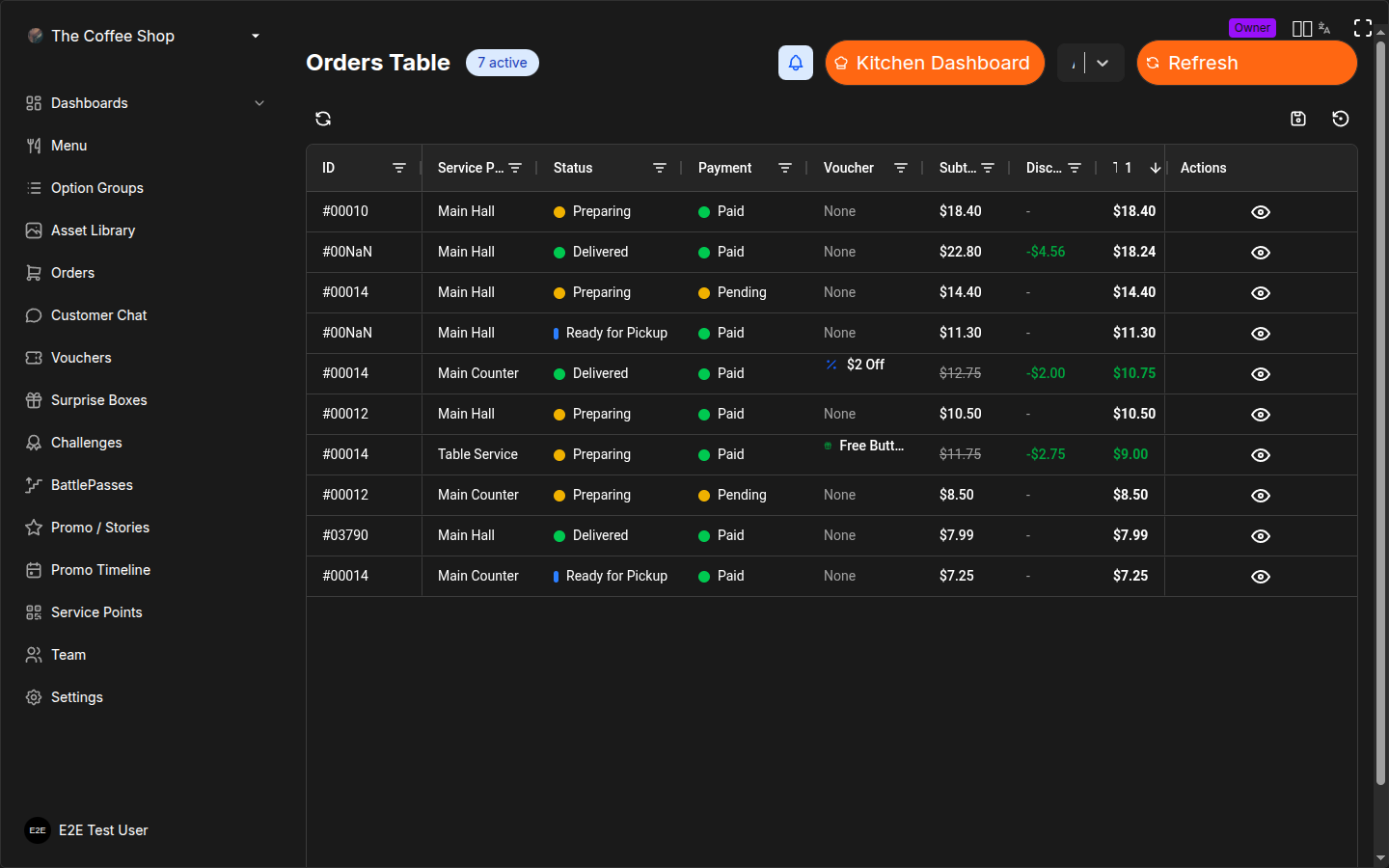
Orders Table View
In addition to the card-based dashboard, the CRM also provides a table view (spreadsheet-style grid) of all orders. This view is useful when you need to:
- See a large number of orders at once in a compact format
- Sort orders by any column (ID, status, payment, amount, time, etc.)
- Use column-level filters for more precise searches
- Quickly scan payment and delivery information across many orders
The table columns include:
| Column | Description |
|---|---|
| ID | Short order number |
| Service Point | The printer / location the order belongs to |
| Status | Current order status with color indicator |
| Payment | Payment status with color indicator |
| Amount | Order total |
| Items | Number of items in the order |
| Prep Time | Estimated preparation time (if set) |
| Delivery | Pickup or To Table |
| Created | Date and time the order was placed |
Click the edit icon on any row to open the order management modal where you can change statuses and view full details.
Frequently Asked Questions
Can I revert an order status?
Partially. You can move an order back from Ready for Pickup to Preparing (for example, if an item needs to be redone). However, once an order is Closed or Cancelled, it cannot be reopened. If a closed order needs correction, create a new order.
What happens to loyalty points if I cancel an order?
No points are awarded for cancelled orders. Points are only awarded when an order reaches the Closed status. If an order is cancelled before closing, the customer receives no points.
If an order was already closed (and points awarded) and you realize it should have been cancelled, the points remain with the customer. Contact support if you need to manually adjust a customer's point balance.
How do refunds work?
OKeep tracks order and payment status separately. To handle a refund:
- Change the Payment Status to "Cancelled" in the order detail modal
- Process the actual monetary refund through your payment provider (cash return, card reversal, etc.)
OKeep does not process monetary transactions directly -- it tracks the status for your records. The actual money movement happens through your payment system.
Can I edit an order after it is placed?
No. Once a customer places an order, the items and prices are locked. If the customer wants to change something, cancel the order and have them place a new one. This prevents confusion between what the kitchen is preparing and what the customer expects.
Why is an order not showing up?
Check these in order:
- Is the CRM connected? Look for the green connection indicator. If it is missing, the live connection may have dropped -- click Refresh.
- Are you looking at the right service point? If you are filtering by service point on the kitchen display, the order may be visible in another filter.
- Is the status filter correct? If you are filtering to "Preparing" only, you will not see orders that have already been marked as ready.
- Did the customer complete the order? The customer may have added items to their cart but not submitted the order yet. Incomplete carts do not appear in the CRM.
Can multiple staff members manage orders at the same time?
Yes. The CRM updates in real time, so multiple staff members can view and manage orders simultaneously. If one person marks an order as ready, everyone else sees the update instantly. There is no locking -- the last action wins if two people try to update the same order at the same time.
Tips for Busy Service Periods
- Keep the Orders page open on a dedicated screen during service
- Enable sound notifications to catch new orders immediately
- Use filters to focus on what matters -- for example, filter to "Preparing" to see only orders that need attention
- Use the Kitchen Display on a separate screen for kitchen staff, and the Orders Dashboard for managers
- Check payment status before handing over orders -- the colored payment indicator makes this easy at a glance
- Assign staff to specific service points -- if you have multiple areas, use the Kitchen Display with service point filtering so each staff member only sees orders for their section
Related Pages
- Order Statuses -- understand the full lifecycle of an order
- Kitchen Display -- the card-based display optimized for kitchen staff