Vouchers
Vouchers are rewards that your customers can purchase with loyalty points or receive through challenges, battle passes, and surprise boxes. Each voucher gives the customer a specific benefit -- a free menu item or a discount -- that they apply at checkout.
This page is the complete reference for every voucher setting, rule, and edge case. If you are creating your first voucher, start with the Create Your First Voucher guide and come back here when you need details.
Understanding Voucher Types
OKeep supports two voucher types. Each one works differently, so choose the right type based on the reward you want to offer.
Free Item
A Free Item voucher gives the customer a specific menu item at no charge. When the customer uses it, the selected item is added to their order with the price set to zero.
- You choose which menu item the voucher covers when creating it.
- The customer sees the original price crossed out and the item marked as free.
- Works well for: signature dishes, coffee, desserts, side items, or any item you want to highlight.
When to use Free Item:
- You want to introduce a new menu item and let customers try it risk-free.
- You want a tangible, easy-to-understand reward ("Free Coffee!" is more exciting than "15% off").
- You want to move a specific product (e.g., a seasonal special or overstocked item).
Free Item vouchers consistently outperform discount vouchers in redemption rates. Customers perceive a "free" item as more valuable than a mathematically equivalent discount, even when the discount would save them more money.
Discount
A Discount voucher reduces the price of an order by a percentage or a fixed amount. You control exactly how the discount is calculated and what it applies to.
- Percentage discount: Reduces the price by a percentage (e.g., 20% off).
- Fixed amount discount: Reduces the price by a set amount (e.g., $5 off).
When to use Discount:
- You want to give customers flexibility to choose what they order.
- You want to encourage larger orders (percentage discounts reward bigger carts).
- You want a simple, universally appealing reward.
A customer can only use one Discount voucher per order. If they have multiple Discount vouchers, they must choose which one to apply. However, customers can use multiple Free Item vouchers on the same order alongside a single Discount voucher.
Voucher Fields Reference
This section documents every field you encounter when creating or editing a voucher.
Voucher Name
| What it is | The title customers see in the points shop and in their wallet |
| Valid values | Any text, minimum 3 characters |
| Default | None (required) |
The voucher name is the first thing customers read when browsing the shop. It appears on the voucher card in the mobile app, in the checkout voucher selector, and in the CRM voucher table.
Tips for naming:
- Be specific: "Free Cappuccino" is better than "Free Drink". Customers should know exactly what they get without tapping into the details.
- Keep it short: The mobile card has limited space. Names over 25 characters get truncated on smaller screens. Aim for 3-5 words.
- Lead with the benefit: "20% Off Your Order" is better than "Order Discount 20%". Put the exciting part first.
- Avoid internal jargon: "Tier 2 Loyalty Reward" means nothing to a customer. "Free Dessert" means everything.
The voucher name cannot be changed after customers have purchased the voucher. If you need a different name, create a new voucher template and deactivate the old one.
Voucher Description
| What it is | A short explanation shown below the voucher name in the mobile app |
| Valid values | Any text (optional) |
| Default | Empty |
Use the description to add context that does not fit in the name. For example, if your voucher is "Happy Hour Deal", the description could be "15% off all drinks, valid Mon-Fri 4-7 PM". The description appears on the voucher detail screen and in the points shop listing.
Voucher Image
| What it is | A visual displayed on the voucher card in the app and CRM |
| Valid values | Any image from your asset library |
| Default | A placeholder icon based on the voucher type |
Select an image using the Asset Picker. You can upload a new image or choose an existing one from your media library.
Recommendations:
- Use a square or near-square image for the best display.
- Show the actual item (a photo of the coffee, the pizza, etc.) rather than abstract graphics.
- Keep it simple -- the image is displayed as a small card thumbnail.
- Use consistent styling across your vouchers for a professional look.
Price (Points)
| What it is | The number of loyalty points a customer must spend to purchase this voucher |
| Valid values | 0 or any positive integer |
| Default | Varies by template (100 for Free Item, 50 for 20% Off, 30 for Happy Hour) |
This is the "cost" of the voucher in your loyalty currency. Setting the price to 0 means the voucher cannot be purchased in the points shop -- it can only be awarded through challenges, battle passes, or surprise boxes.
Pricing strategy:
- Too cheap: Customers redeem constantly, eroding your margins. You are essentially giving away products.
- Too expensive: Customers never reach the goal and lose interest in the loyalty program entirely.
- The sweet spot: Price the voucher so that it takes 5-10 typical visits to earn enough points. This keeps customers engaged without giving away too much.
If your average order is $15 and your points rate is 10%, customers earn about 1.5 points per visit. For a "Free Coffee" voucher worth $4 on your menu, pricing it at 10-15 points means a customer needs roughly 7-10 visits to earn it. That is a good retention target for most restaurants.
Discount Scope
| What it is | What the discount applies to (the whole order, a specific item, or a category) |
| Valid values | Entire Order, Specific Item, Category |
| Default | Entire Order |
| Applies to | Discount vouchers only |
The scope determines the "target" of the discount calculation:
| Scope | What it does | Example |
|---|---|---|
| Entire Order | Applies the discount to the full order total | "20% off your order" -- a $50 order becomes $40 |
| Specific Item | Applies the discount to one particular menu item | "50% off any Latte" -- a $5 Latte becomes $2.50, everything else is full price |
| Category | Applies the discount to all items in a menu category | "15% off all Desserts" -- every dessert item in the order gets 15% off, mains are full price |
Choosing the right scope:
- Entire Order is the simplest for customers to understand. Use it when you want a broad incentive that applies no matter what they order.
- Specific Item is surgical. Use it when you want to promote one product (e.g., a new menu addition or a high-margin item).
- Category is a middle ground. Use it to drive traffic to an entire section of your menu (e.g., "10% off all drinks" during afternoon hours).
When you choose Specific Item, an item selector appears where you can search your menu and pick the target item. When you choose Category, a category selector appears. Only active menu items and categories are shown.
Discount Type
| What it is | Whether the discount is calculated as a percentage or a fixed dollar amount |
| Valid values | Percentage (%) or Fixed Amount ($) |
| Default | Percentage |
| Applies to | Discount vouchers only |
| Type | How it works | Example |
|---|---|---|
| Percentage | Removes a percentage of the target price | 20% off a $50 order = $10 discount |
| Fixed Amount | Removes a flat dollar amount from the target price | $5 off a $50 order = $5 discount |
When to use each:
- Percentage rewards larger orders proportionally. A 20% discount on a $100 order saves $20, but on a $20 order only saves $4. This naturally encourages customers to order more.
- Fixed Amount gives a predictable, easy-to-communicate saving. "$5 off" is instantly understood. It is better for lower-priced items where a percentage would feel insignificant.
For Percentage discounts, use the slider to set the value from 0% to 100% in steps of 5%. For Fixed Amount discounts, type the dollar amount directly into the input field.
Max Discount
| What it is | A cap on the maximum discount amount for percentage discounts |
| Valid values | Any positive number, or empty for no cap |
| Default | No cap |
| Applies to | Discount vouchers with Percentage type only |
The max discount prevents a percentage discount from becoming excessively large on expensive orders.
Example without a cap: A "50% off your order" voucher applied to a $200 group order = $100 discount. That might be more than you intended.
Example with a $20 cap: The same "50% off your order" voucher on a $200 order would be capped at $20 instead of $100. On a $30 order, the 50% discount ($15) is below the cap, so the customer gets the full $15.
If your percentage is 25% or higher and you allow order-level discounts, strongly consider setting a maximum. Group orders and large party orders can have totals of $100-$300+, and an uncapped percentage discount can lead to unexpectedly large giveaways.
Target Menu Item
| What it is | The specific menu item that becomes free (for Free Item vouchers) or discounted (for Item-scoped discounts) |
| Valid values | Any active menu item |
| Default | None (required for Free Item and Item-scoped discounts) |
| Applies to | Free Item vouchers and Discount vouchers with "Specific Item" scope |
For Free Item vouchers, this is the item the customer receives at no charge. Choose carefully -- this is the core of the voucher's value.
For Discount vouchers with Specific Item scope, this is the item that gets the discount. All other items in the order remain at full price.
Choose items that are popular enough that customers actually want them, but have healthy margins so the giveaway does not hurt your bottom line. Coffee, desserts, and side items are classic choices because they have relatively low cost of goods.
Target Category
| What it is | The menu category that gets the discount |
| Valid values | Any active menu category |
| Default | None (required for Category-scoped discounts) |
| Applies to | Discount vouchers with "Category" scope only |
When a customer uses a category-scoped discount, every item in their order that belongs to the selected category receives the discount. Items in other categories remain at full price.
Expiration (Days)
| What it is | How many days a voucher remains valid after a customer purchases or receives it |
| Valid values | Any positive integer, or "Never expires" |
| Default | Never expires |
Expiration is counted from the moment the customer acquires the voucher -- not from when you create the template. If you set 30 days, each customer gets their own 30-day window starting from their purchase date.
What happens when a voucher expires:
- The voucher status changes from Available to Expired in the customer's wallet.
- The customer can no longer select or use it.
- The points they spent to purchase it are not refunded.
- Expired vouchers remain visible in the customer's history but are clearly marked.
Recommended expiration periods:
| Period | Best for |
|---|---|
| 7 days | Urgent, high-value rewards that drive immediate return visits |
| 14-30 days | Standard rewards -- gives customers enough time to plan a visit |
| 60-90 days | Low-urgency rewards or vouchers given to infrequent visitors |
| Never | Rewards that should never expire (use sparingly -- creates long-term liability) |
Vouchers that never expire accumulate over time. If many customers are stockpiling unused vouchers, they represent a potential future cost that is hard to predict. For most merchants, a 30-60 day expiration is the best balance between customer convenience and business predictability.
Availability Schedule
Start Date and End Date
| What it is | A date range when the voucher template is available for purchase |
| Valid values | Any date, or empty for no restriction |
| Default | No restriction (always available) |
If both dates are set, the voucher only appears in the points shop between those dates. Outside this window, the voucher is hidden from customers but still exists in the CRM.
Use this for seasonal or promotional vouchers: "Summer Special -- available June 1 to August 31".
Recurrence
| What it is | How the availability schedule repeats |
| Valid values | One-time, Weekly, Monthly, Yearly |
| Default | One-time |
| Recurrence | Behavior |
|---|---|
| One-time | Only valid between the start and end dates |
| Weekly | Repeats every week on selected days |
| Monthly | Repeats on the same day each month |
| Yearly | Repeats on the same date each year |
When you select Weekly, a row of day buttons appears (Mon through Sun). Click each day the voucher should be active. At least one day must be selected.
Valid Days
| What it is | Which days of the week the voucher can be used |
| Valid values | Any combination of Mon-Sun (at least one) |
| Default | All days |
| Applies to | Weekly recurrence only |
This controls when the voucher is usable, not when it is purchasable. A customer can buy a "Weekday Only" voucher on Sunday, but they can only apply it to an order placed Monday through Friday.
Valid Hours
| What it is | The time window during which the voucher can be used |
| Valid values | A from/to time range, or "All day" |
| Default | All day (no time restriction) |
Use this for time-specific promotions like happy hour deals. A voucher with valid hours of 16:00 to 19:00 can only be applied to orders placed during that window.
Valid hours interact with valid days. If you set valid days to Mon-Fri and valid hours to 16:00-19:00, the voucher is only usable on weekdays between 4 PM and 7 PM.
Active / Inactive Toggle
| What it is | Controls whether the voucher template is visible in the points shop |
| Valid values | Active or Inactive |
| Default | Active |
When you deactivate a voucher:
- It disappears from the points shop -- no new customers can purchase it.
- Customers who already own the voucher can still use it until it expires or they redeem it.
- The template remains in the CRM table, marked as Inactive.
- You can reactivate it at any time, and it reappears in the shop.
When to deactivate instead of delete:
- You want to temporarily remove a voucher (e.g., between promotional seasons).
- You want to keep the configuration for reference or to reactivate later.
- Customers still have active copies of this voucher.
Creating a Voucher
To create a new voucher, go to the Vouchers section in your CRM and click Create Voucher. The creation wizard guides you through three steps.
Step 1: Choose the Type
On this screen you decide what kind of voucher to create. You have two options:
Quick Setup templates -- Pre-configured voucher templates that you can start from and customize:
- Free Item -- A classic loyalty reward for a free menu item (100 points default).
- 20% Off -- A standard percentage discount on the entire order (50 points default).
- Happy Hour -- A 15% discount restricted to weekday afternoons from 16:00 to 19:00 (30 points default).
Selecting a template pre-fills the form with sensible defaults. You can change any value in the next steps.
Manual type selection -- Choose between Free Item and Discount to start from scratch.
After choosing, click Continue to proceed.
Step 2: Configure the Details
This step has two sections: basic information and type-specific settings.
Basic Information (applies to both types):
- Voucher Name -- The name customers see in the app (e.g., "Free Coffee", "20% Off Your Order"). Must be at least 3 characters.
- Price (Points) -- How many loyalty points the customer spends to purchase this voucher. Set to 0 if the voucher is given as a reward only (through challenges or battle passes) and should not appear in the points shop.
- Description -- A short explanation of what the customer gets. Shown below the voucher name in the app.
- Voucher Image -- An optional image displayed on the voucher card. Use the Asset Picker to select an image from your media library or upload a new one.
Free Item settings:
- Free Menu Item -- Select which menu item the customer receives for free. Use the item selector to search your menu and pick the item.
Discount settings:
-
Discount Applies To -- Choose the scope:
- Entire Order -- The discount applies to the full order total.
- Specific Item -- The discount applies to one menu item. After selecting this option, use the item selector to choose the item.
- Category -- The discount applies to all items in a category. After selecting this option, use the category selector to choose the category.
-
Discount type -- Toggle between Percentage % and Fixed Amount $.
- For percentage discounts, use the slider to set the value (0--100% in steps of 5).
- For fixed amount discounts, type the dollar amount directly.
After configuring, click Continue to proceed.
As you fill in the form, a Customer Preview card appears on the right side of the screen. It shows how the voucher will look to customers in the mobile app, including the name, description, point cost, and discount details. Use this to verify your voucher looks right before saving.
Step 3: Set the Schedule
The scheduling step controls when the voucher can be used and how long it lasts. All scheduling options are optional -- if you skip them, the voucher is available at all times with no expiration.
Expiration
Controls how long a voucher lasts after a customer purchases it.
- Check Never expires if the voucher should remain valid indefinitely.
- Uncheck it and enter a number of days (e.g., 30) to make the voucher expire that many days after purchase.
Expiration is counted from the moment the customer purchases the voucher, not from when you create it. If you set 30 days, each customer gets 30 days from their own purchase date.
Availability Schedule
Controls the date range when the voucher can be purchased and used.
- Start Date and End Date -- Limit the voucher to a specific date range. Leave both empty for no date restrictions.
- Recurrence -- Choose how the schedule repeats:
- One-time -- Only valid between the start and end dates.
- Weekly -- Repeats every week. When selected, choose which days of the week the voucher is valid (e.g., Monday through Friday only).
- Monthly -- Repeats on the same day each month.
- Yearly -- Repeats on the same date each year.
- Valid Days -- When using weekly recurrence, click the day buttons (Mon, Tue, Wed, etc.) to select which days the voucher is active. At least one day must be selected.
Valid Hours
Restricts the hours during which the voucher can be used.
- Check All day (no time restriction) if the voucher works at any hour.
- Uncheck it and set a From and To time to restrict usage to specific hours (e.g., 16:00 to 19:00 for a happy hour deal).
After configuring the schedule, click Create Voucher (or Update Voucher if editing) to save.
Managing Existing Vouchers
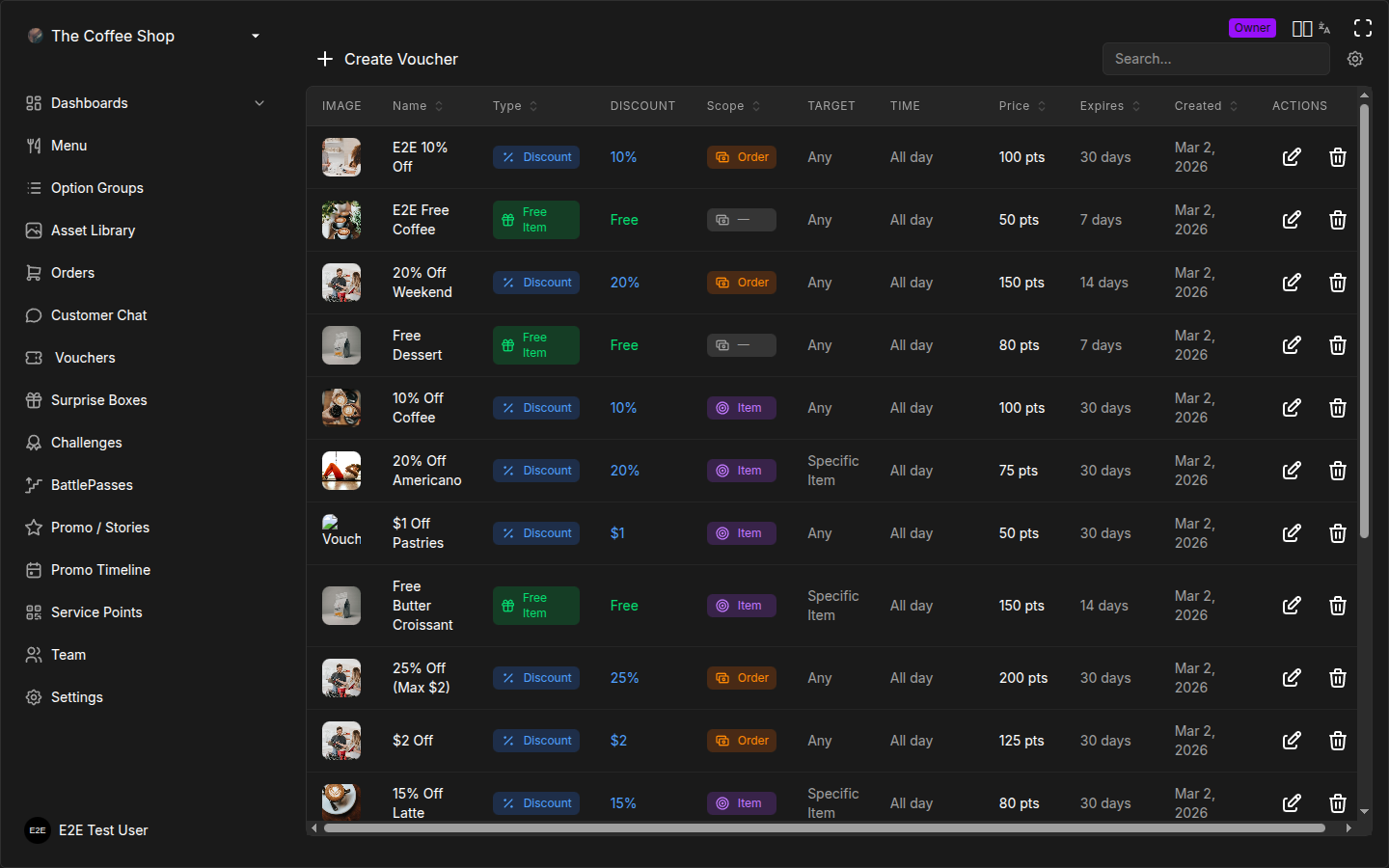
The Voucher Table
The Vouchers page shows all your voucher templates in a table with the following columns:
| Column | What it shows |
|---|---|
| Image | The voucher image (or a placeholder icon) |
| Name | The voucher name |
| Type | Badge showing Free Item (green) or Discount (blue) |
| Discount | The discount value -- "Free" for Free Item vouchers, a percentage or dollar amount for Discount vouchers |
| Scope | Badge showing Item (purple) or Order (orange) |
| Target | What the voucher targets -- "Specific Item", "Category", a max value, or "Any" |
| Time | Valid hours restriction, or "All day" |
| Price | Point cost to purchase |
| Expires | Number of days until expiration, or "Never" |
| Created | Creation date |
Editing a Voucher
Click the edit icon (pencil) on any voucher row to open the edit form. The form is the same wizard used for creation, pre-filled with the voucher's current settings. The wizard opens directly on the Configure step since the type cannot be changed after creation.
Make your changes and click Update Voucher to save.
Changes to a voucher template affect how the voucher appears in the shop going forward. Vouchers that customers have already purchased keep the settings they had at the time of purchase.
Deleting a Voucher
Click the delete icon (trash) on a voucher row to remove it. Deleting a voucher template removes it from the shop so no new customers can purchase it.
Deleting a voucher template is permanent. If customers already hold copies of this voucher, those copies remain in their wallets and can still be used. However, you will no longer be able to manage or view the template in the CRM. If you just want to hide the voucher from the shop temporarily, deactivate it instead.
How Customers Use Vouchers
Understanding the customer flow helps you design better voucher offers.
Purchasing
- The customer opens the Points Shop in the mobile app.
- They browse available voucher templates and see the name, image, description, and point cost.
- They tap a voucher and confirm the purchase. The points are deducted from their balance.
- The voucher appears in their My Vouchers wallet.
Using at Checkout
- During checkout, the customer sees a list of their available vouchers.
- They select the voucher(s) they want to apply.
- For Free Item vouchers, the free item is added to the order automatically.
- For Discount vouchers, the discount is calculated and shown on the order summary.
- The customer confirms the order. The voucher is locked to that order.
- Once the order is completed, the voucher is marked as used.
Voucher Lifecycle
Each voucher a customer owns goes through these stages:
| Stage | Meaning |
|---|---|
| Available | In the customer's wallet, ready to use |
| Selected | Customer has chosen it for their current cart (not yet ordered) |
| Pending | Attached to an active order that is being prepared |
| Used | The order was completed and the voucher is fully consumed |
| Expired | The voucher passed its expiration date without being used |
If an order is cancelled, any vouchers attached to it are returned to the Available state so the customer can use them again.
Stacking Rules
Customers can combine vouchers on a single order with these rules:
- Multiple Free Item vouchers -- Allowed. A customer can use several Free Item vouchers on one order (e.g., a free coffee and a free cookie).
- One Discount voucher -- Only one Discount voucher can be applied per order. The customer chooses which one.
- Free Item + Discount together -- Allowed. A customer can use Free Item vouchers and one Discount voucher on the same order.
Free Item vouchers are applied first (adding items to the cart), then the Discount voucher is calculated on the final subtotal.
Discount Calculation Examples
Understanding exactly how discounts are calculated helps you set the right values.
Percentage on Entire Order
A customer has a "20% Off Your Order" voucher. Their order:
| Item | Price |
|---|---|
| Margherita Pizza | $12.00 |
| Caesar Salad | $8.00 |
| Espresso | $3.00 |
| Subtotal | $23.00 |
Discount: 20% of $23.00 = $4.60 off. Customer pays $18.40.
Percentage on Specific Item
A customer has a "50% Off Any Latte" voucher. Their order:
| Item | Price | Discount |
|---|---|---|
| Latte | $5.00 | -$2.50 (50% off) |
| Croissant | $3.50 | -- |
| Subtotal | $8.50 | -$2.50 |
Customer pays $6.00. Only the Latte is discounted.
Percentage on Category
A customer has a "15% Off All Desserts" voucher. Their order includes two desserts:
| Item | Category | Price | Discount |
|---|---|---|---|
| Grilled Chicken | Mains | $14.00 | -- |
| Tiramisu | Desserts | $7.00 | -$1.05 (15%) |
| Cheesecake | Desserts | $6.00 | -$0.90 (15%) |
| Subtotal | $27.00 | -$1.95 |
Customer pays $25.05. Only dessert items are discounted.
Fixed Amount on Entire Order
A customer has a "$5 Off Your Order" voucher. Their order total is $18.00. Discount: $5.00 off. Customer pays $13.00.
Percentage with Max Discount Cap
A customer has a "50% Off" voucher with a max discount of $15. Their order total is $80.00.
- 50% of $80 = $40.00
- Max discount is $15.00
- Actual discount: $15.00 (capped). Customer pays $65.00.
If their order was $25.00 instead:
- 50% of $25 = $12.50
- Max discount is $15.00
- Actual discount: $12.50 (below cap, full percentage applies). Customer pays $12.50.
Free Item + Discount Combined
A customer uses a "Free Espresso" voucher and a "10% Off Your Order" voucher:
| Item | Price | After Free Item |
|---|---|---|
| Margherita Pizza | $12.00 | $12.00 |
| Espresso | $3.00 | $0.00 (free) |
| Subtotal | $15.00 | $12.00 |
The 10% discount is applied to the $12.00 subtotal (after the free item): $12.00 - $1.20 = $10.80.
Frequently Asked Questions
Can I edit a voucher after customers have it?
Yes, you can edit the voucher template at any time. However, changes only affect future purchases. Vouchers that customers have already acquired retain the settings they had at the time of purchase. For example, if you change the expiration from 30 days to 14 days, customers who already bought the voucher still have 30 days.
What happens to active vouchers when I delete the template?
Vouchers that customers already own continue to work normally. They can still select and redeem them. Deleting the template only prevents new purchases. If you need to invalidate existing vouchers, there is no bulk revocation -- you would need to wait for them to expire or be used.
Can a customer use two discount vouchers on one order?
No. The system enforces a strict one discount voucher per order rule. If a customer selects a discount voucher and then tries to add another, the first one is automatically deselected. They can, however, use multiple Free Item vouchers alongside one discount voucher.
What is the difference between expiration and valid hours?
Expiration controls how long the voucher exists in the customer's wallet after purchase (e.g., 30 days from purchase date). Valid hours control the time of day when the voucher can be used (e.g., only between 4 PM and 7 PM). These are independent settings. A voucher can expire in 30 days AND be restricted to happy hour times. If the customer does not visit during the valid hours before the expiration date, the voucher is lost.
Can I change a voucher's type after creation?
No. The type (Free Item or Discount) is locked when you create the voucher. If you need a different type, create a new voucher template and deactivate the old one. This is by design -- changing a Free Item voucher to a Discount voucher (or vice versa) would fundamentally alter what customers who already own it expect to receive.
Why does my voucher not appear in the points shop?
Check these things in order:
- Is it active? Inactive vouchers are hidden from customers.
- Is the price set to 0? Zero-cost vouchers do not appear in the shop -- they can only be awarded through challenges, battle passes, or surprise boxes.
- Is it within the availability dates? If you set a start/end date, the voucher only shows during that window.
- Is the schedule correct? If you set weekly recurrence with specific days, the voucher only shows on those days.
Do vouchers work with group orders?
Yes. Each member of a group can apply their own vouchers to their portion of the order. The group owner (who places the final order) can also apply their vouchers. Free Item vouchers add the free item to the individual member's cart. Discount vouchers apply to the member's own items, not the entire group order total.
What happens if I delete a menu item that a Free Item voucher references?
If the target menu item is deleted or deactivated, customers who already own the voucher will not be able to use it properly. The voucher will still exist in their wallet, but the free item will not be available. To avoid this, deactivate the voucher template before removing the menu item, or create a replacement voucher with a different item.
Can customers buy the same voucher multiple times?
Yes. A customer can purchase the same voucher template as many times as they want, as long as they have enough points. Each purchase creates a separate voucher instance in their wallet with its own expiration countdown.
Are points refunded if a customer does not use a voucher before it expires?
No. Points spent on a voucher are deducted at the time of purchase and are not refunded if the voucher expires unused. This is by design -- the points transaction is final. If you want to compensate a customer in a special case, you can manually award them points through the Give Points feature.
Troubleshooting
Voucher not appearing in the customer app
Symptoms: You created a voucher but customers say they cannot find it in the points shop.
Checklist:
- Verify the voucher is Active in the CRM voucher table. Look for the green "Active" badge.
- Check the price. If the price is 0, the voucher will not appear in the shop. It can only be given as a reward.
- Check the schedule dates. If you set a start date in the future, the voucher will not show until that date.
- Check the recurrence and valid days. A weekly voucher set to "Mon-Fri" will not show on Saturday or Sunday.
- Ask the customer to refresh. Pull-to-refresh on the shop screen to reload the voucher list.
Discount not applying correctly
Symptoms: The customer expected a certain discount amount but the order total is different.
Possible causes:
- Max discount cap: If you set a maximum discount, the percentage might be hitting the cap on larger orders. Check the max discount field.
- Wrong scope: The discount might be scoped to a specific item or category, not the entire order. The customer might have expected an order-level discount.
- Free Item voucher applied first: When a Free Item voucher and a Discount voucher are used together, the free item is applied first, reducing the subtotal. The discount is then calculated on the reduced subtotal, which results in a smaller dollar discount.
- Percentage rounding: Small rounding differences (fractions of a cent) can occur with percentage calculations. This is normal.
Customer says voucher expired early
Symptoms: A customer claims their voucher expired before they expected.
Investigation steps:
- Check the voucher template's expiration days setting. The expiration is counted from the customer's purchase date, not the template creation date.
- Check the availability schedule. If the voucher has an end date and that date passed, the voucher may no longer be usable even if the customer's personal expiration has not been reached.
- Check the valid hours. The customer might be trying to use the voucher outside the allowed time window. The voucher is not expired -- it is just not currently valid.
- If the customer is correct and the voucher expired earlier than the settings indicate, use the Sync Balance button in the User Info panel to recalculate their status.
Customer cannot apply voucher at checkout
Symptoms: The voucher appears in the customer's wallet but they cannot select it during checkout.
Possible causes:
- Valid hours: The customer is outside the voucher's valid time window.
- Valid days: The customer is ordering on a day that is not in the voucher's valid days.
- One discount rule: The customer already has a discount voucher selected. They must deselect it before choosing a different one.
- Item not in order: For a category-scoped discount, the customer might not have any items from the target category in their cart.
Best Practices
Start Small
Begin with 3-5 voucher templates that cover the basics:
- One Free Item voucher for your signature item (e.g., "Free Coffee").
- One percentage discount for general use (e.g., "10% Off Your Order").
- One time-limited voucher to drive off-peak traffic (e.g., "Happy Hour 15% Off, Mon-Fri 4-7 PM").
Monitor redemption rates for two weeks before adding more. You can always expand your offerings, but too many options at launch overwhelm customers and dilute the value of each voucher.
Naming Conventions
Adopt a consistent naming pattern across your vouchers:
| Pattern | Example |
|---|---|
| Free + Item Name | "Free Cappuccino", "Free Cookie" |
| Percentage + Scope | "20% Off Your Order", "15% Off Desserts" |
| Amount + Scope | "$5 Off Your Order" |
| Theme + Benefit | "Happy Hour 15% Off", "Weekend Special" |
Consistent naming makes the points shop feel professional and helps customers quickly find what they want.
Pricing Strategy
- Anchor your prices to your points earning rate. If customers earn 1 point per $10 spent, a 50-point voucher represents $500 in purchases. That is roughly 33 visits for an average $15 order. Is the reward worth that loyalty? Adjust accordingly.
- Vary the cost. Offer cheap vouchers (10-20 points) for small rewards and expensive vouchers (100+ points) for premium rewards. This gives customers both short-term and long-term goals.
- Compare Free Item cost to the menu price. If a free coffee costs $4 on your menu but requires 100 points to redeem, make sure 100 points represents a fair trade for the customer's loyalty. As a rule of thumb, the perceived value of the voucher should feel like 3-5x the point cost in real spending.
Seasonal Rotation
Refresh your voucher offerings regularly to keep the loyalty program feeling alive:
- Monthly: Review which vouchers are being redeemed and which are ignored.
- Quarterly: Introduce 1-2 new seasonal vouchers and retire underperforming ones.
- Holidays: Create limited-time vouchers with festive names and short expiration dates.
- New menu items: Create a Free Item voucher for any new addition to encourage trial.
Combine with Other Features
Vouchers are most powerful when integrated into your broader loyalty strategy:
- Challenges: Use vouchers as challenge rewards to give customers a tangible goal beyond points.
- Battle Pass: Place high-value vouchers in mid and top tiers to motivate progression.
- Surprise Boxes: Include vouchers as possible rewards in mystery boxes for an element of excitement.
- Points System: Set voucher prices that align with your earning rate so the math feels fair.
See Choosing the Right Tool for guidance on combining features.
Related Pages
- Create Your First Voucher -- Step-by-step tutorial
- Points System -- How customers earn and spend points
- Challenges -- Goal-based rewards that can award vouchers
- Battle Pass -- Tiered progression with voucher rewards
- Surprise Boxes -- Mystery boxes containing voucher rewards
- Choosing the Right Tool -- Compare all loyalty features