Challenges
Challenges are goal-based tasks that reward customers for reaching specific milestones -- earning points, visiting your establishment, or building streaks of consecutive visits. They are one of the most effective tools for driving repeat behavior because they give customers a clear target and a visible reward.
This page is the complete reference for every challenge setting, rule, and edge case. If you are creating your first challenge, start with the Create Your First Challenge guide and come back here when you need details.
What Are Challenges?
A challenge is a goal you set for your customers. When a customer reaches the target, they automatically receive a reward. Challenges appear in the customer's mobile app, where they can track their progress in real time.
Unlike vouchers (which are passive -- customers buy them and use them), challenges are active. They give customers something to work toward, which creates a psychological commitment to your restaurant. A customer with 3 out of 5 visits completed is far more likely to return than one with no goal at all.
Examples:
- "Earn 500 points" -- rewards loyal spenders
- "Visit us 10 times" -- encourages repeat visits
- "Visit 7 days in a row" -- builds daily habits
Challenge Fields Reference
This section documents every field you encounter when creating or editing a challenge.
Name
| What it is | The title customers see in the app's challenge list |
| Valid values | Any text, minimum 3 characters |
| Default | None (required) |
The challenge name is the first thing customers see. It should communicate the theme or goal at a glance.
Tips for naming:
- Make it aspirational: "Coffee Champion" is more motivating than "5 Visits Challenge". Give customers an identity to aspire to.
- Keep it short: 2-4 words works best. The mobile app displays challenge names on compact cards.
- Match the theme to the goal: "Morning Regular" for a breakfast streak, "Weekend Warrior" for a weekend visit challenge.
- Avoid numbers in the name: The target number is displayed separately. "Coffee Lover" is better than "Visit 5 Times" because the goal is already shown on the progress bar.
Description
| What it is | An explanation of what the customer needs to do |
| Valid values | Any text, minimum 10 characters |
| Default | None (required) |
The description appears below the challenge name in the app. Use it to explain the goal clearly and hint at the reward.
Good examples:
- "Visit us 5 times this month and earn a free dessert voucher."
- "Earn 1,000 points from your orders to unlock 100 bonus points."
- "Order every day for 3 days straight and win a mystery reward."
Bad examples:
- "Complete this challenge" (too vague)
- "5 visits" (just repeats the target number with no context)
Active Toggle
| What it is | Controls whether the challenge is visible to customers |
| Valid values | Active or Inactive |
| Default | Active |
When Active: The challenge appears in the customer app and accepts progress. Customers can see their progress bar and the reward.
When Inactive: The challenge is hidden from customers. Existing progress is preserved in the background but no new progress is tracked. Reactivating the challenge restores it with previous progress intact.
Create challenges in advance with the Active toggle off, then activate them at the right moment (start of a campaign, holiday season, etc.). This lets you prepare everything without customers seeing an incomplete setup.
Challenge Type
| What it is | The kind of customer activity the challenge tracks |
| Valid values | Points, Visits, Days Visiting |
| Default | None (required) |
Every challenge tracks one type of customer activity. You choose the type when creating the challenge, and it cannot be changed afterward.
| Type | What it tracks | How progress is counted | Resets on miss? |
|---|---|---|---|
| Points | Total points the customer earns from orders | Cumulative -- every point earned adds to the total | No |
| Visits | Number of separate orders placed | Each completed order counts as one visit | No |
| Days Visiting | Consecutive calendar days with at least one order | Each day with an order adds one to the streak | Yes -- missing a day resets the streak to zero |
Points challenges reward high spenders -- a customer who places one large order can progress significantly. Visits challenges reward frequency -- ten $5 orders count the same as ten $50 orders. Days Visiting challenges reward consistency -- the customer must order on consecutive calendar days, and missing a single day resets their streak.
When to use each type:
| Type | Best for | Example scenario |
|---|---|---|
| Points | Rewarding big spenders, encouraging upsells | Fine dining restaurant where order values vary widely |
| Visits | Building a regular customer base, encouraging frequency | Coffee shop where customers grab a quick drink |
| Days Visiting | Creating daily habits, driving weekday traffic | Lunch spot near an office building |
Target
| What it is | The number the customer must reach to complete the challenge |
| Valid values | Any positive integer |
| Default | None (required) |
The target depends on the challenge type:
- Points challenge: The total points to accumulate (e.g., 500 means the customer must earn 500 points).
- Visits challenge: The number of orders to place (e.g., 10 means 10 separate visits).
- Days Visiting challenge: The streak length in consecutive days (e.g., 5 means ordering 5 days in a row).
Start with targets that most customers can realistically reach, then introduce harder challenges for your top regulars.
| Difficulty | Points target | Visits target | Days Visiting target |
|---|---|---|---|
| Easy | 100-300 | 3-5 | 2-3 |
| Medium | 500-1,000 | 7-10 | 4-5 |
| Hard | 1,500-3,000 | 15-20 | 6-7 |
| Extreme | 5,000+ | 30+ | 10+ |
A target that feels impossible will discourage participation rather than motivate it. The sweet spot is when a customer thinks: "I can do that if I come back a few more times."
Reward Type
| What it is | The kind of reward the customer receives upon completion |
| Valid values | Points, Voucher, Surprise Box |
| Default | None (required) |
Every challenge needs a reward. The reward is granted automatically when the customer reaches the target.
| Reward Type | What the customer receives | How to configure |
|---|---|---|
| Points | Bonus loyalty points added to their balance | Enter the number of points in the Points field |
| Voucher | A voucher added to their wallet | Select an existing voucher template from the Reward Voucher dropdown |
| Surprise Box | A surprise box they can open immediately | Select an existing surprise box from the Reward Surprise Box dropdown |
Before you can assign a voucher or surprise box as a reward, you need to create it in the Vouchers or Surprise Boxes section. If none are available, only Points rewards can be used.
Reward Text
| What it is | A short description shown to the customer alongside the reward |
| Valid values | Any text (optional) |
| Default | The default reward name (e.g., the voucher name or "X points") |
Use this to add a human-friendly description of the reward. For example, if the reward is a voucher named "FREE_COFFEE_V2" (an internal name), you can set the reward text to "A free coffee, on us!" to show something friendlier.
Scheduling
The scheduling section controls when the challenge is available to customers. All scheduling fields are optional -- if you leave them empty, the challenge runs indefinitely with no time restrictions.
Start Date
| What it is | The earliest date the challenge becomes active |
| Valid values | Any date, or empty to start immediately |
| Default | Empty (starts immediately) |
End Date
| What it is | The date the challenge stops accepting progress |
| Valid values | Any date, or empty for no end date |
| Default | Empty (no end date) |
When an end date is reached:
- The challenge stops tracking new progress.
- Customers who have not yet completed it see the challenge as expired.
- Customers who completed it before the end date have already received their rewards.
- The challenge remains visible in the CRM table but will not accept new activity.
You can clear a date by clicking the clear button next to the date field.
Recurrence
| What it is | How the challenge availability repeats |
| Valid values | One-time, Weekly, Monthly, Yearly |
| Default | One-time |
| Recurrence | Behavior |
|---|---|
| One-time | Active only between the start and end dates (default) |
| Weekly | Repeats every week on selected days |
| Monthly | Repeats on the same calendar day each month |
| Yearly | Repeats on the same date each year |
When you select Weekly, a row of day buttons appears (Mon through Sun). Click each day the challenge should be active. You must select at least one day.
Valid Hours
| What it is | The time window during which orders count toward the challenge |
| Valid values | A from/to time range, or "All day" |
| Default | All day |
By default, challenges count progress all day. To restrict progress tracking to specific hours:
- Toggle All Day off
- Use the slider to set the start and end hour
For example, setting 08:00 to 12:00 means only orders placed during those morning hours count toward the challenge. An order placed at 13:00 would not increment the progress bar.
Valid hours affect when progress is tracked, not when the challenge is visible. Customers can always see the challenge in their app, but only qualifying orders move the progress bar.
Repeatable Challenges
By default, a challenge can be completed only once per customer. To let customers complete it multiple times, enable the Repeatable Challenge toggle.
Repeatable challenges are your best tool for sustained engagement. While one-time challenges create a burst of activity that ends, repeatable challenges create an ongoing loop of earning and redemption.
Reset Period
| What it is | How often the customer's progress resets to zero |
| Valid values | Daily, Weekly, Monthly |
| Default | Weekly |
Controls how often the customer's progress resets to zero so they can start again.
| Period | When progress resets | Best for |
|---|---|---|
| Daily | Every day at midnight | Low-target challenges (1-2 visits) for daily traffic |
| Weekly | Every Monday at midnight | Medium-target challenges (3-5 visits) for regular customers |
| Monthly | The 1st of each month at midnight | Higher-target challenges (10+ visits) for dedicated loyalty |
A repeatable challenge "Visit us 3 times" with a Weekly reset period means: every Monday, the customer's visit count goes back to zero. If they reach 3 visits before Monday, they earn the reward, then start over the next week.
Max Completions
| What it is | The total number of times a single customer can complete the challenge |
| Valid values | Any positive integer, or Unlimited |
| Default | Unlimited |
Limits the total number of times a single customer can complete the challenge across all reset periods. Toggle Unlimited off to set a specific cap.
When to set a limit:
- You want to offer a generous reward but cap the total giveaway (e.g., "Complete this challenge up to 4 times to earn a free item each time").
- You want the challenge to feel special by being limited rather than infinite.
When to leave unlimited:
- You want an ongoing, evergreen engagement mechanic that customers can rely on.
- The reward is modest enough that unlimited completions will not hurt your margins.
How Progress Works
Understanding exactly what counts as progress helps you design challenges that work as intended.
What Counts as Progress
| Challenge type | What increments progress | What does NOT count |
|---|---|---|
| Points | Points earned from completed orders (automatic points from the points system) | Manual point awards from staff, points from challenges or battle passes |
| Visits | Each completed order counts as one visit, regardless of order size | Cancelled orders, orders in progress (only completed orders count) |
| Days Visiting | Each calendar day where the customer places at least one completed order | Multiple orders on the same day still count as one day |
When Progress is Recorded
Progress is recorded when an order is completed (status changes to CLOSED). Orders that are still in progress, being prepared, or waiting for pickup do not count yet. If an order is cancelled before completion, any progress that was tentatively recorded is reversed.
Streak Resets (Days Visiting)
For Days Visiting challenges, the streak counter works on calendar days:
- Day 1: Customer places an order. Streak = 1.
- Day 2: Customer places an order. Streak = 2.
- Day 3: Customer does not order. Streak resets to 0.
- Day 4: Customer places an order. Streak = 1 (starts over).
This makes Days Visiting challenges the most demanding type. Use them with modest targets (3-5 days) to avoid frustrating customers.
There is no "grace period" for streak challenges. If a customer misses a single day, their progress resets to zero. Make sure your target is achievable for your typical customer's visiting pattern. A 7-day streak challenge for a restaurant that is closed on Sundays is impossible to complete.
Progress Visibility
Customers see their progress in real time on the challenge card in the mobile app:
- A progress bar fills up as they get closer to the target.
- A counter shows current progress vs. the target (e.g., "3/5 visits").
- For streak challenges, the counter shows the current streak length.
- When completed, the card shows a completion animation and the reward details.
Managing Challenges
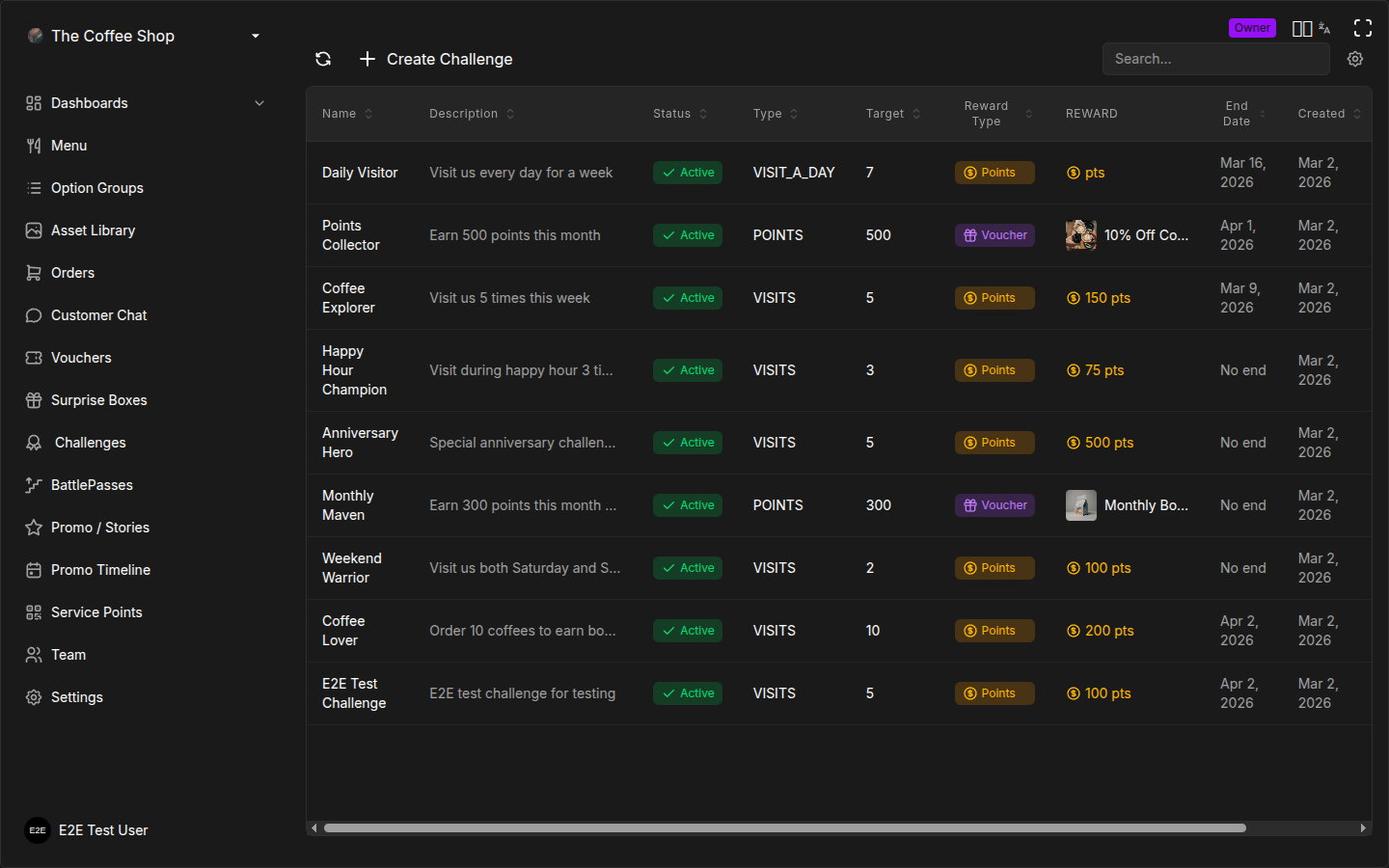
The Challenge Table
The Challenges page shows all your challenges in a table with the following columns:
| Column | Description |
|---|---|
| Name | Challenge title |
| Description | Goal description |
| Status | Active or Inactive badge |
| Type | Points, Visits, or Days visiting |
| Target | The number to reach |
| Reward Type | Points, Voucher, or Surprise Box |
| Reward | The specific reward (point amount, voucher name, or surprise box name) |
| End Date | When the challenge expires, or "No end" |
| Created | Creation date |
Editing a Challenge
- Find the challenge in the table
- Click the Edit icon on the right side of the row
- Modify any fields in the form
- Click Update
Changes take effect immediately for all customers who have not yet completed the challenge.
Editing a challenge that customers are already working on can be confusing. If you lower the target, some customers might instantly complete it. If you raise the target, customers who were close to finishing now have more work to do. For significant changes, consider creating a new challenge instead.
Activating or Deactivating
Use the Active toggle in the challenge form to control visibility:
- Active -- The challenge appears in the customer app and accepts progress.
- Inactive -- The challenge is hidden from customers. Existing progress is preserved but no new progress is tracked.
Frequently Asked Questions
Can customers see their progress?
Yes. Customers see a real-time progress bar and a numeric counter (e.g., "3/5 visits") on every active challenge in their mobile app. The progress updates as soon as an order is completed. For streak challenges, the counter shows the current consecutive day count.
What happens if I change the goal while people are in progress?
The change takes effect immediately. If you lower the target, customers whose current progress already exceeds the new target will complete the challenge automatically on their next progress event. If you raise the target, customers need to continue working toward the new, higher goal. Their existing progress is not lost -- it just represents a smaller percentage of the new target.
Can I have overlapping challenges?
Yes. You can have multiple active challenges of the same type running simultaneously. For example, an easy "Visit 3 Times" challenge and a hard "Visit 20 Times" challenge can both be active. Customers see all of them and progress toward each one independently. Each completed order counts toward all applicable challenges.
Do cancelled orders count toward progress?
No. Only completed orders (status CLOSED) count. If an order is cancelled, any progress that was tentatively attributed to it is reversed. This prevents customers from gaming the system by placing and immediately cancelling orders.
Can a customer complete a non-repeatable challenge more than once?
No. A one-time challenge can only be completed once per customer, ever. After completion, the challenge card shows as "Completed" in the customer's app. The only way for the customer to earn the reward again is if you create a separate, new challenge.
What happens when a repeatable challenge resets?
When the reset period arrives (midnight on the reset day), the customer's progress counter goes back to zero. If the customer had already completed the challenge in the current period, the reward was already granted. The counter simply restarts for the new period. Previous completions are not affected.
Do challenges work outside of business hours?
Challenges track orders regardless of your business hours unless you set Valid Hours on the challenge. If you have valid hours set to 08:00-12:00, only orders placed within that window count. If a customer somehow places an order at 23:00 (e.g., through an online ordering flow), it would not count toward an hours-restricted challenge.
What reward should I use for a repeatable challenge?
Points are the safest choice for repeatable challenges because they have a predictable cost and scale well. Voucher rewards work too but consider the margin impact if many customers complete the challenge every week. Surprise Box rewards add excitement but make sure the box contents are appropriate for repeated wins.
Can I see which customers are working on a challenge?
Individual customer progress is visible in the customer's profile in the CRM (through the User Info panel in the chat or kitchen dashboard). There is no aggregate "leaderboard" view in the CRM showing all customers' progress on a specific challenge.
Does progress carry over between challenges?
No. Each challenge tracks its own progress independently. If a customer completes a "Visit 5 Times" challenge and you later create a new "Visit 10 Times" challenge, the customer starts the new challenge at zero -- their previous visits do not carry over.
Troubleshooting
Challenge not showing to customers
Symptoms: You created a challenge but customers say they cannot find it in the app.
Checklist:
- Is it Active? Check the Active badge in the CRM challenges table. Inactive challenges are hidden from customers.
- Check the start date. If the start date is in the future, the challenge will not appear until that date.
- Check the end date. If the end date has passed, the challenge is expired and will not show.
- Check recurrence and valid days. A weekly challenge set to Mon-Fri will not appear on weekends.
- Ask the customer to refresh. Pull-to-refresh on the challenges screen reloads the list.
Progress not counting
Symptoms: A customer placed an order but their challenge progress did not increase.
Possible causes:
- Order not completed yet. Progress is only recorded when the order reaches CLOSED status. If the order is still being prepared or waiting for pickup, progress has not been credited yet.
- Valid hours restriction. If the challenge has valid hours set, orders placed outside those hours do not count.
- Valid days restriction. If using weekly recurrence, orders on non-selected days do not count.
- Challenge is inactive. An inactive challenge does not track progress even if it was previously active.
- Non-repeatable challenge already completed. If the customer already completed a one-time challenge, no further progress is tracked.
- Max completions reached. If the customer has hit the max completions limit on a repeatable challenge, no further progress is tracked.
Streak reset unexpectedly
Symptoms: A customer says their streak challenge was reset even though they visited.
Possible causes:
- The customer missed a calendar day. Even if they visited on Tuesday evening and Wednesday morning (less than 24 hours apart), the streak still counts calendar days. Missing Wednesday entirely means the streak resets on Thursday.
- Order was placed after midnight. A late-night order placed at 00:30 counts for the new day, not the previous day.
- Order was cancelled. If the customer's only order for the day was cancelled, that day has no completed order and the streak breaks.
- Valid hours restriction. If the customer ordered outside the challenge's valid hours, the order does not count for that day, and the day is treated as missed.
Challenge Design Examples
Here are five concrete challenge designs for different restaurant types. Use these as starting points and adjust the numbers for your business.
1. Coffee Shop: "Morning Regular"
| Field | Value |
|---|---|
| Name | Morning Regular |
| Description | Grab your morning coffee 5 times this week |
| Type | Visits |
| Target | 5 |
| Reward | Voucher: "Free Pastry" |
| Repeatable | Yes |
| Reset Period | Weekly |
| Valid Hours | 07:00 - 12:00 |
| Max Completions | Unlimited |
Why it works: Targets the morning coffee crowd with an achievable weekly goal. The pastry reward encourages them to add a food item to their usual coffee order.
2. Pizzeria: "Pizza Explorer"
| Field | Value |
|---|---|
| Name | Pizza Explorer |
| Description | Order 10 times and earn a free pizza |
| Type | Visits |
| Target | 10 |
| Reward | Voucher: "Free Margherita" |
| Repeatable | Yes |
| Reset Period | Monthly |
| Max Completions | Unlimited |
Why it works: Monthly cadence suits restaurants where customers visit 2-3 times per week. The free pizza reward is tangible and exciting.
3. Lunch Spot: "Streak Master"
| Field | Value |
|---|---|
| Name | Streak Master |
| Description | Visit 3 days in a row for bonus points |
| Type | Days Visiting |
| Target | 3 |
| Reward | Points: 50 |
| Repeatable | Yes |
| Reset Period | Weekly |
| Valid Hours | 11:00 - 15:00 |
Why it works: A 3-day streak is achievable for office workers who eat lunch nearby. Valid hours restrict it to the lunch window, and the weekly reset means a fresh start every Monday.
4. Bar: "Weekend Warrior"
| Field | Value |
|---|---|
| Name | Weekend Warrior |
| Description | Earn 500 points on weekend orders |
| Type | Points |
| Target | 500 |
| Reward | Voucher: "20% Off Your Next Visit" |
| Repeatable | Yes |
| Reset Period | Monthly |
| Recurrence | Weekly (Sat-Sun only) |
Why it works: Targets the weekend crowd with a points-based goal that rewards bigger tabs. The discount voucher encourages the customer to come back.
5. Fine Dining: "Gourmet Journey"
| Field | Value |
|---|---|
| Name | Gourmet Journey |
| Description | Spend enough to earn 2,000 points and receive a surprise reward |
| Type | Points |
| Target | 2000 |
| Reward | Surprise Box: "Chef's Selection Box" |
| Repeatable | No |
Why it works: A one-time, aspirational challenge for a fine dining restaurant. The high target means only dedicated customers reach it, and the surprise box reward adds a sense of exclusivity.
Best Practices
Pick the Right Challenge Type
- Use Points challenges when you want to reward high spenders regardless of visit frequency.
- Use Visits challenges to encourage repeat visits -- great for building a regular customer base.
- Use Days Visiting (streak) challenges to drive daily traffic. These work best with low targets (3-5 days) since long streaks can feel discouraging.
Match Rewards to Effort
| Difficulty | Target example | Suggested reward |
|---|---|---|
| Easy | 3 visits, 200 points | 50 bonus points |
| Medium | 10 visits, 1,000 points | Discount voucher (10-15% off) |
| Hard | 5-day streak, 2,500 points | Free item voucher or surprise box |
| Extreme | 20+ visits, 5,000+ points | Premium voucher (high-value free item) |
If the reward does not match the effort, customers either feel cheated (hard goal, small reward) or you give away too much (easy goal, big reward).
Use Repeatable Challenges for Ongoing Engagement
One-time challenges create a burst of activity but end. Repeatable challenges with a Weekly or Monthly reset keep customers coming back consistently. Pair them with modest but reliable rewards.
The ideal repeatable challenge:
- Easy enough that most active customers can complete it each period.
- Rewarding enough that customers feel motivated to do so.
- Frequent enough that it stays top of mind.
Combine with Other Loyalty Features
- Challenges + Vouchers: Set a voucher as the reward so customers earn something tangible they can use on their next visit.
- Challenges + Battle Pass: Use challenges for quick, achievable goals while the Battle Pass provides a longer-term progression system. Both keep customers engaged at different time scales.
- Challenges + Surprise Boxes: Surprise box rewards add an element of excitement since the customer does not know exactly what they will get.
Schedule Strategically
- Weekday-only challenges (Weekly recurrence, Mon-Fri) can drive traffic on slower days.
- Weekend challenges encourage weekend visits.
- Morning hour restrictions (e.g., 07:00-11:00) can boost breakfast or early-bird orders.
- Limited-time challenges with a clear end date create urgency.
Avoid Common Mistakes
- Target too high: A 30-visit challenge discourages everyone except your most loyal customers. Start with 5-10 and increase later.
- Too many active challenges: 2-4 active challenges is ideal. More than that overwhelms customers and dilutes focus.
- Streak challenges that are too long: A 7-day streak means the customer must order every single day. Most people cannot do this. Keep streaks at 3-5 days.
- No repeatable challenges: If all your challenges are one-time, engagement drops to zero after completion. Always have at least one repeatable challenge active.
- Mismatched valid hours and customer behavior: Setting valid hours to 08:00-10:00 for a dinner restaurant means no one can complete it.
Related Pages
- Create Your First Challenge -- Step-by-step tutorial
- Points System -- How customers earn the points tracked by Points challenges
- Vouchers -- Creating voucher templates used as challenge rewards
- Battle Pass -- Longer-term progression that complements challenges
- Surprise Boxes -- Mystery boxes used as challenge rewards
- Choosing the Right Tool -- Compare all loyalty features