Kitchen Dashboard
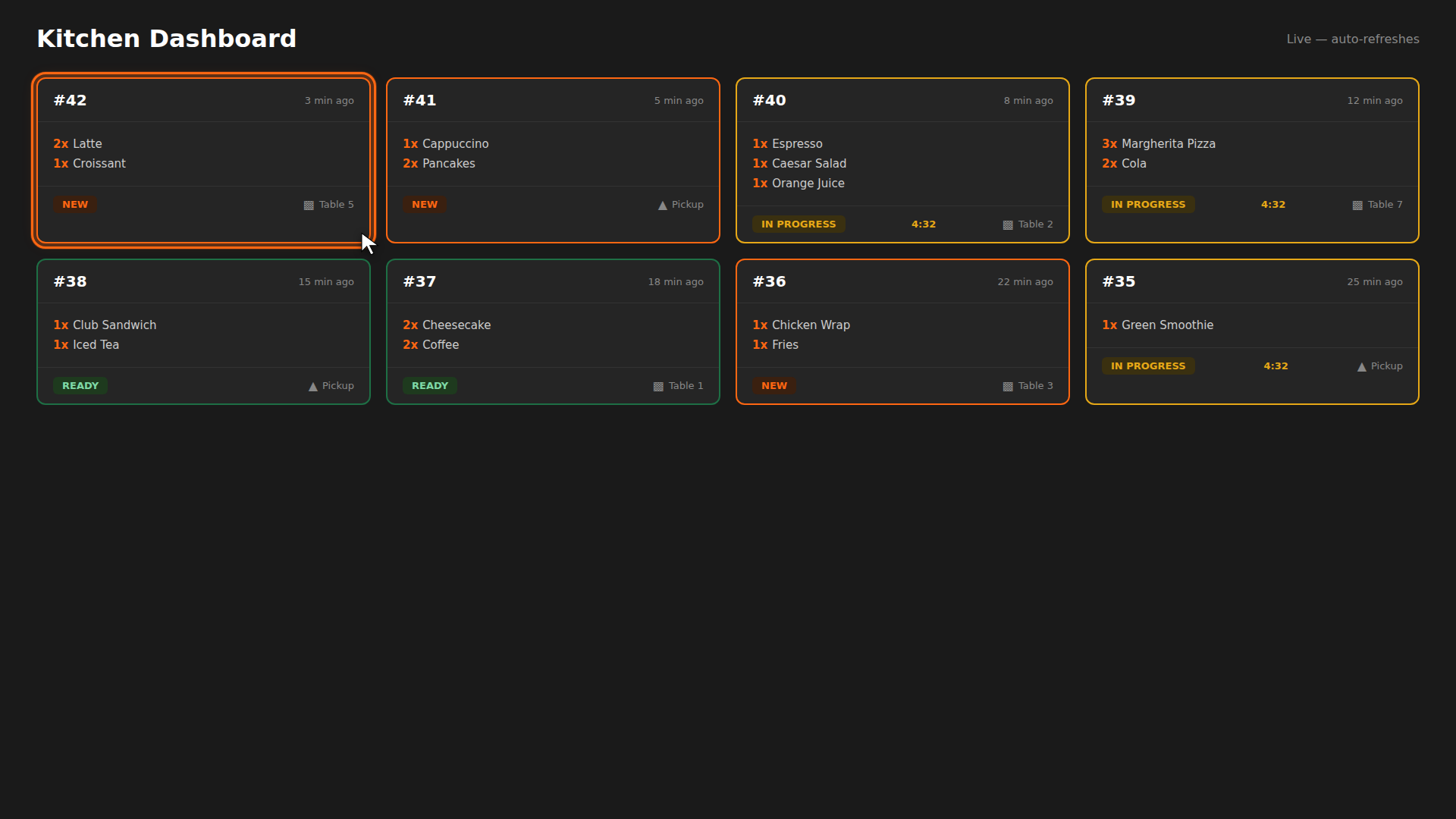
The kitchen dashboard is your real-time command center for incoming orders. Every new order appears as a card, and you move it through the preparation workflow: New → In Progress → Ready for Pickup. Here is how to use it.
Build it for real
Ready to build it?
Opens the right CRM screen with this help page attached.
Tips
- Orders auto-refresh — no need to reload the page. New orders appear as soon as they are placed.
- Special notes are highlighted in yellow so you never miss dietary requirements or custom requests.
- The timer helps you track preparation time and spot orders that are taking too long.