Manage Assets
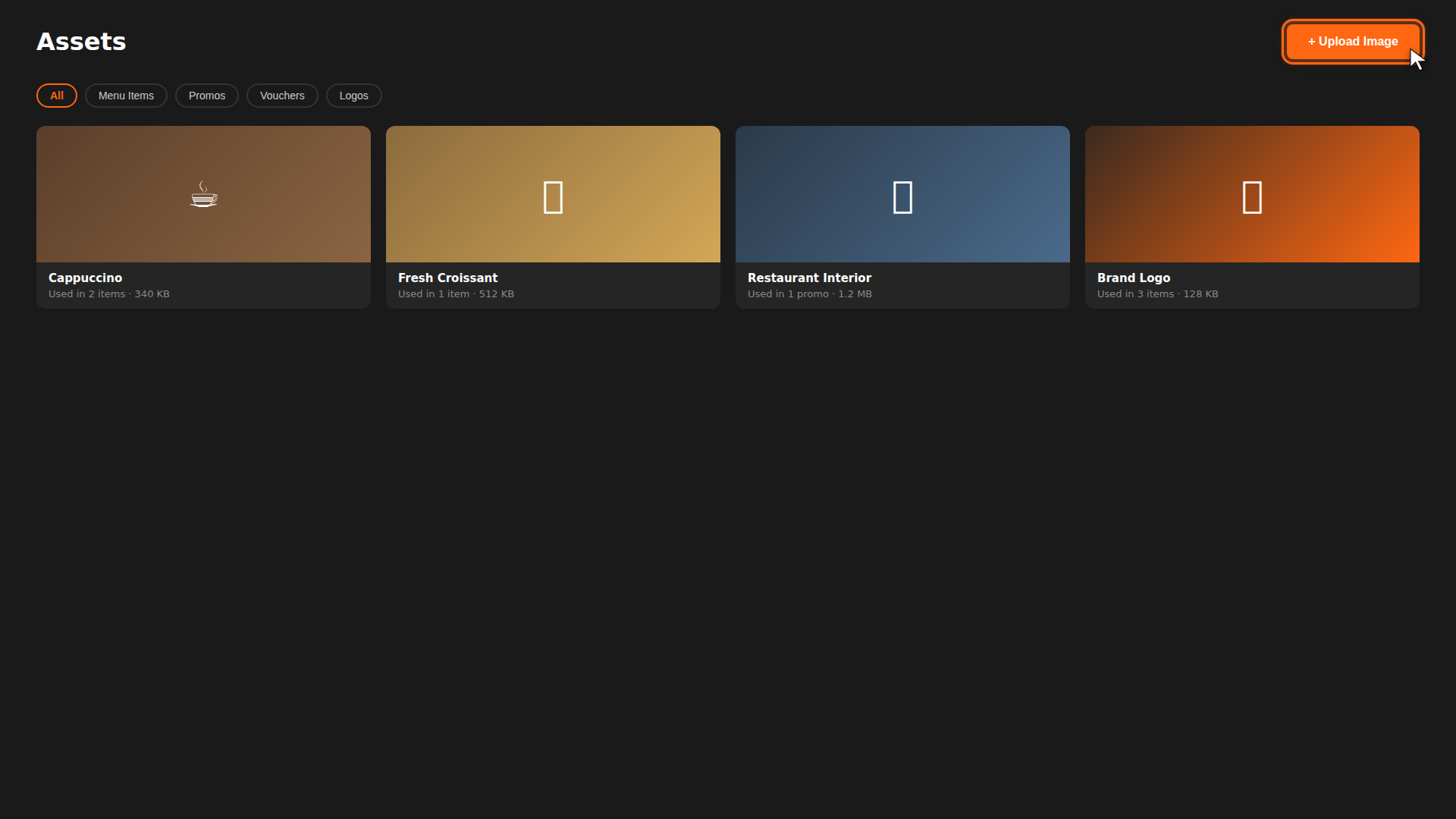
Assets are the images you use across your restaurant — menu item photos, promo banners, voucher artwork, and your logo. Instead of uploading the same image multiple times in different places, the Assets gallery gives you a single library. Upload once, then pick the image wherever you need it.
Tips
- Reuse images — pick an existing asset instead of uploading duplicates. This keeps your library clean and load times fast.
- Tag consistently — use the same tags across images (e.g. "drinks", "desserts", "branding") so filtering works well as your library grows.
- Check "Used By" before deleting — the detail view shows every item that references the image, so you know what will lose its photo.
Build it for real
Ready to build it?
Opens the right CRM screen with this help page attached.