Merchant Settings
Configure your restaurant profile, ordering options, location, and loyalty settings all in one place.
The Merchant Settings page is your central hub for everything about your business in OKeep. Changes are saved together with a single Save All Settings button at the bottom of the page.
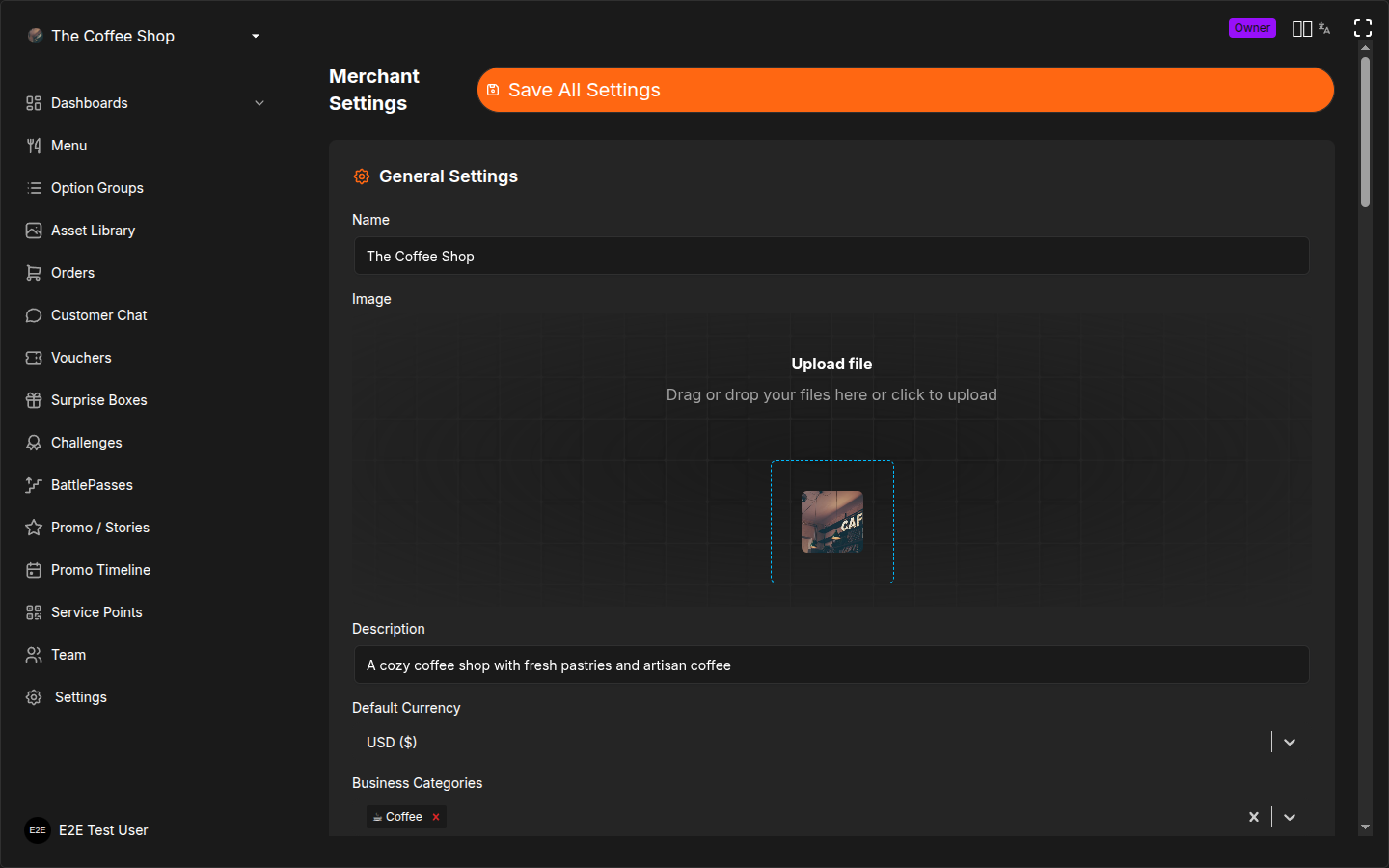
Opening Merchant Settings
- Go to Settings in the CRM sidebar
- Click Merchant Settings
General Settings
This section defines how your business appears to customers in the app.
Merchant Name
Your business name as customers see it. This field is required.
Image
Upload a logo or photo that represents your business. The image is cropped to a 1:1 square ratio during upload.
Description
A short description of your restaurant or business. Customers see this on your profile in the app.
Default Currency
Select the currency used for all pricing and orders:
| Currency | Code |
|---|---|
| US Dollar | USD |
| Euro | EUR |
| British Pound | GBP |
| Ukrainian Hryvnia | UAH |
| Polish Zloty | PLN |
Business Categories
Choose one or more categories that describe your business. Categories help customers discover you in the app.
| Category | Category | Category | ||
|---|---|---|---|---|
| Pizza | Sushi | Burger | ||
| Kebab | Asian | Coffee | ||
| Dessert | Italian | Ukrainian | ||
| Grill | Chicken | Seafood | ||
| Salad | Sandwich | Breakfast | ||
| Hot Dog | Ice Cream | Vegan | ||
| Other |
You can select multiple categories if your menu spans different cuisines.
Website URL
Add your restaurant's website address. Customers can access it from your profile.
Social Media
Link your social media accounts so customers can find and follow you. Each field shows an icon and a format hint to help you enter the correct URL.
| Platform | Format |
|---|---|
instagram.com/yourpage | |
facebook.com/yourpage | |
| TikTok | tiktok.com/@yourpage |
| YouTube | youtube.com/@yourchannel |
| Twitter / X | x.com/yourhandle |
| Telegram | t.me/yourchannel |
All social media fields are optional. Only platforms with a link entered will appear on your customer-facing profile.
Ordering Options
Configure how customers can place and receive orders.
Delivery Modes
Control which delivery methods are available to customers:
| Mode | Description |
|---|---|
| Pickup | Customer picks up the order at the counter |
| To Table | Staff delivers the order to the customer's table |
Toggle each mode on or off. At least one delivery mode must be enabled at all times. If you try to disable both, the system will prevent it.
If your business is counter-service only, enable just Pickup. For full-service restaurants, enable both Pickup and To Table so customers can choose.
Payment Methods
Control which payment methods customers can use:
| Method | Description |
|---|---|
| Cash | Customer pays with cash at the counter |
| Card | Customer pays by card (in person or online) |
Toggle each method on or off. At least one payment method must be enabled at all times.
For online payment configuration (Stripe, BLIK, Przelewy24), see Online Payments.
Location
Set your restaurant's physical location so customers can find you.
Map & Address
An interactive Google Maps view lets you pinpoint your exact location:
- Use the search bar at the top of the map to find your address
- Click on the map to adjust the pin position
- The address fields below will update automatically
You can also fill in the address fields manually:
| Field | Description |
|---|---|
| Location Name | Display name for this location (e.g., "Main Branch") |
| Address | Street address |
| City | City or town |
| Country | Country |
| Latitude | Auto-filled from map pin |
| Longitude | Auto-filled from map pin |
| Phone | Contact phone number for this location |
Working Hours
Set your opening hours for each day of the week. The editor shows all 7 days in a row:
- Enable or disable each day with its toggle. Disabled days show as closed.
- For each enabled day, set the opening time and closing time.
- Default hours are 09:00 - 18:00 for new setups.
| Day | Toggle | Open | Close |
|---|---|---|---|
| Monday | On/Off | 09:00 | 18:00 |
| Tuesday | On/Off | 09:00 | 18:00 |
| Wednesday | On/Off | 09:00 | 18:00 |
| Thursday | On/Off | 09:00 | 18:00 |
| Friday | On/Off | 09:00 | 18:00 |
| Saturday | On/Off | 09:00 | 18:00 |
| Sunday | On/Off | 09:00 | 18:00 |
If your restaurant is closed on certain days, simply toggle those days off. Customers will see your business as closed on those days in the app.
Points Settings
Configure how loyalty points are automatically awarded to customers after orders.
Enable Auto Points
Toggle Enable Auto Points to activate or deactivate automatic point rewards. When enabled, customers earn points on every completed order based on the settings below.
Configuration Fields
| Setting | Description |
|---|---|
| Rate (%) | Percentage of the order total awarded as points. For example, a 10% rate on a $20 order awards 2 points. |
| Minimum Order | Minimum order total required before points are awarded. Orders below this amount earn no points. |
| Maximum Points Per Order | Cap on the number of points a single order can earn, regardless of order total. |
Live Calculation Examples
As you adjust the rate, minimum, and maximum values, the settings page displays live examples showing exactly how many points a customer would earn at different order amounts. Use these to fine-tune your rewards before saving.
Start with a rate that makes sense for your pricing. A 10% rate means a customer spending $100 total earns 10 points. Pair this with voucher costs (e.g., a free coffee for 50 points) to create a rewarding but sustainable loyalty program. See Points System for more details.
Award Points Buttons
Configure quick-access buttons that staff can use to manually award points to customers. These buttons appear in the waiter dashboard and lobby detail views.
- You can set up to 5 preset amounts.
- Default presets are 50, 100, and 200 points.
- Adjust the amounts to match your most common manual reward scenarios.
Staff tap one of these buttons to instantly award that number of points to a customer, without typing a custom amount each time.
Saving Your Settings
All sections on this page are saved together:
- Make your changes across any sections
- Scroll to the bottom of the page
- Click Save All Settings
The system validates all fields before saving. If any required field is missing or invalid, you will see an error message next to that field.
Frequently Asked Questions
General Settings
Can I change my merchant name after going live? Yes. Update the name in General Settings and click Save All Settings. The change is reflected immediately in the customer app. Keep in mind that customers who already know your old name may be confused, so avoid frequent changes.
What image format and size should my logo be? Upload a PNG or JPG at least 500x500 pixels. The system crops it to a 1:1 square during upload. Use a clean, recognizable image — it appears as a small icon in the customer app, so avoid text-heavy logos that become unreadable at small sizes.
Can I select multiple business categories? Yes. Select every category that applies to your menu. If you serve pizza and salads, select both Pizza and Salad. Categories help customers discover your business when browsing the app.
Delivery Modes
What happens if I disable a delivery mode? Customers will no longer see that option during checkout. If a customer has items in their cart and you disable the delivery mode they selected, they will need to choose a different mode at checkout. Existing completed orders are not affected.
Can I have different delivery modes for different service points? Yes. The merchant-level setting defines the global options available. Individual service points (printers) can further restrict delivery modes. For example, you can enable both Table Service and Pickup globally, but set a specific counter service point to Pickup only. See Setting Up Service Points for per-printer configuration.
What is the difference between Table Service and Pickup? Table Service means staff delivers the order to the customer's table — the customer stays seated and their table number is included on the kitchen ticket. Pickup means the customer comes to the counter to collect their order when it is ready.
Payment Methods
Can I accept online payments? Yes. Enable the Card payment method, then set up your payment provider in Online Payments. OtoPoint supports Stripe, BLIK, and Przelewy24 depending on your region.
What if I only accept cash? Enable only Cash and disable Card. Customers will see Cash as their only payment option. You can enable Card later at any time without affecting existing orders.
Working Hours
Do working hours block orders outside those times? Working hours are currently informational — they are shown to customers in the app so they know when you are open, but the system does not prevent ordering outside those times. If you need to stop orders (e.g., you are closed for a holiday), disable your service points or turn off delivery modes temporarily.
Can I set different hours for different days? Yes. Each day of the week has its own toggle and time range. You can set Monday-Friday to 8:00-22:00 and weekends to 10:00-23:00, for example. You can also toggle individual days off entirely for days you are closed.
How do I handle holiday closures? Toggle the relevant day off in Working Hours. If you are closed for a multi-day holiday, toggle each day off individually. Remember to turn them back on when you reopen.
Points Settings
What is a good starting points rate? It depends on your average order value and how generous you want your loyalty program to be. General guidelines:
- Coffee shop / low ticket: 10-15% (customers visit frequently, small orders)
- Restaurant / high ticket: 3-5% (customers visit less often, larger orders)
- Takeaway / medium ticket: 10-15% (encourage repeat visits)
See the use-case guides for specific recommendations: Coffee Shop, Restaurant, Takeaway.
Can I change the points rate later? Yes. Changing the rate affects future orders only — points already earned by customers are not recalculated. You can adjust the rate, minimum order, and maximum points at any time.
Related Pages
- Online Payments -- set up Stripe and online payment methods
- Team Management -- invite staff and assign roles
- Points System -- learn how the loyalty points system works
- Coffee Shop Setup -- complete setup example for a coffee shop
- Restaurant Setup -- complete setup example for a sit-down restaurant
- Takeaway Setup -- complete setup example for a takeaway spot